Can’t Open a WebP File? Here’s How to Convert It Instantly
A folder of 48 product images opened without any problem in Chrome. Then the client uploaded the same files to a marketplace portal, and every upload failed with the same vague message: “Unsupported Image format.”
Nothing was wrong with the images. The problem was the destination.
That is the frustrating part of WebP. It works very well for modern websites, and current major browsers can display it, but some desktop apps, upload forms, email workflows, editing tools, and older systems still expect JPG or PNG instead.
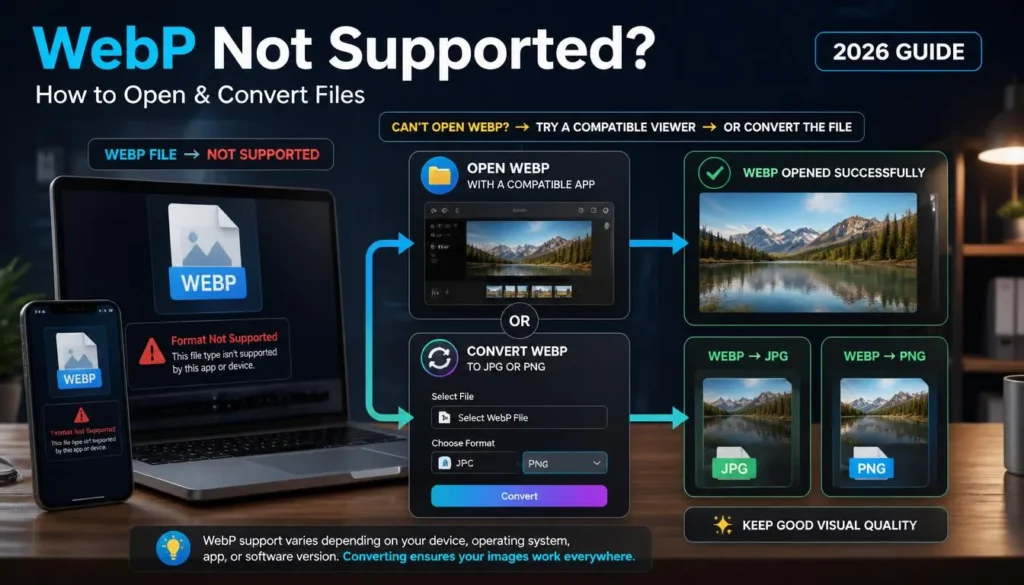
If you are searching for ” webp not supported how to open, the fastest solution is usually simple: open the file in a modern browser to confirm it is valid, then convert a copy to JPG or PNG for the tool or platform that rejected it.
You do not need to abandon WebP entirely. You need the right version for the next step in your workflow.
Why a WebP File Will Not Open
WebP is a modern Image format designed for the web. It supports lossy and lossless compression, as well as transparency and animation.
That flexibility makes WebP useful for websites, WordPress Image libraries, online stores, blog posts, and image-heavy landing pages. A WebP Image can often deliver similar visual quality with a smaller file size than an older JPG or PNG version.
The issue is compatibility outside the browser.
A WebP file may fail to open when:
-
Your photo viewer does not support WebP
-
Your Image editor is outdated
-
A marketplace only accepts JPG or PNG
-
A government, banking, school, or job application portal rejects WebP
-
An email service does not preview WebP attachments properly
-
A messaging app changes or blocks the file
-
A design tool only accepts selected Image formats
-
A printer or print-service workflow asks specifically for JPG, PNG, TIFF, or PDF
-
An older operating system does not recognize the file type
-
A site upload form has not been updated to accept modern Image formats
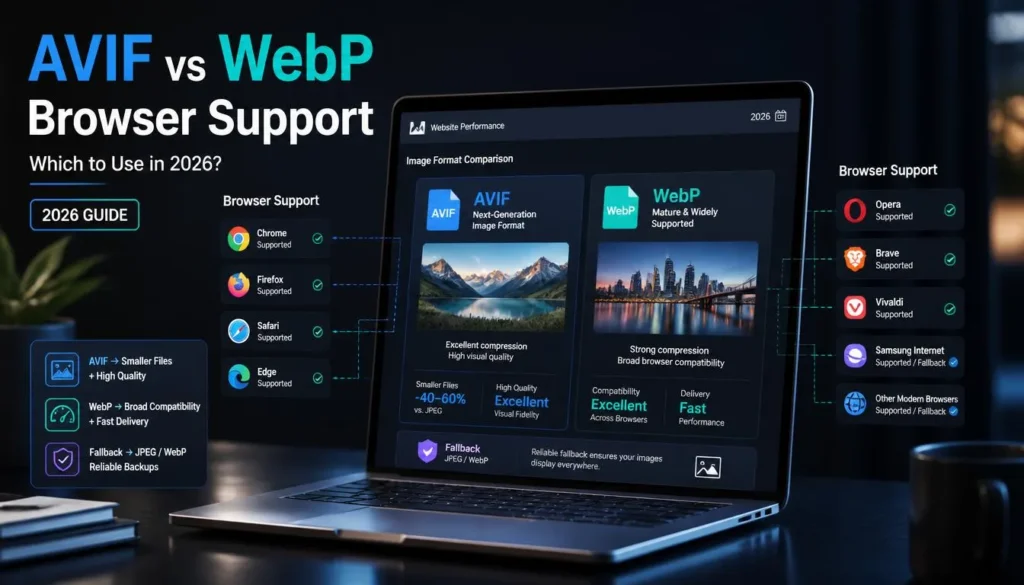
Modern browsers are usually the easiest way to verify whether a .webp file is valid. You can drag the file into Chrome, Edge, Firefox, Safari, or another current browser window to view it. WebP is widely supported across modern browsers, and websites can also provide browser-specific Image alternatives through the HTML <picture> element when needed. MDN Web Docs
A file-opening error does not always mean the WebP Image is damaged. More often, it means the application you are using does not know how to handle that format.
WebP Not Supported: How to Open the File First
Before converting anything, confirm that the file itself works.
1. Check the file extension
Look at the filename.
A WebP Image should usually end in:
image-name.webpDo not rely only on the thumbnail icon. File associations can be wrong, especially after moving files between computers, downloading from a browser, or receiving images through messaging apps.
If the file ends in .webp, it is probably a WebP Image. If it ends in .jpg, .png, .avif, or .heic, you are dealing with a different format and need a different solution.
On Windows, you may need to enable file extensions first:
-
Open File Explorer.
-
Select View.
-
Choose Show.
-
Turn on File name extensions.
On macOS, right-click the file and select Get Info to view the filename and extension.
2. Try opening it in a modern browser
Drag the WebP file into an open browser window.
This is my first check when a client says an Image “won’t open.” It takes a few seconds and immediately separates a compatibility issue from a broken download.
If the Image opens in the browser, the file is probably fine. The app, upload form, or Image viewer that rejected it is the part that needs a workaround.
If it does not open in a modern browser, try downloading the Image again. A partial download, renamed file, or corrupt attachment can cause a genuine opening problem.
3. Check whether the file is actually an Image
Sometimes a file is labeled .webp but is not a normal still Image.
WebP can also contain animation. If you are trying to open an animated WebP in a basic Image viewer, it may display only one frame, fail to animate, or refuse to open the file.
You may also encounter files downloaded from websites that have confusing names, missing extensions, or renamed formats. Opening the file in a browser is still the quickest test.
If the browser displays the Image correctly, convert the file based on where you need to use it next.
Convert WebP to JPG or PNG Instantly
Once you know the WebP file is valid, choose the target format based on the destination.
-
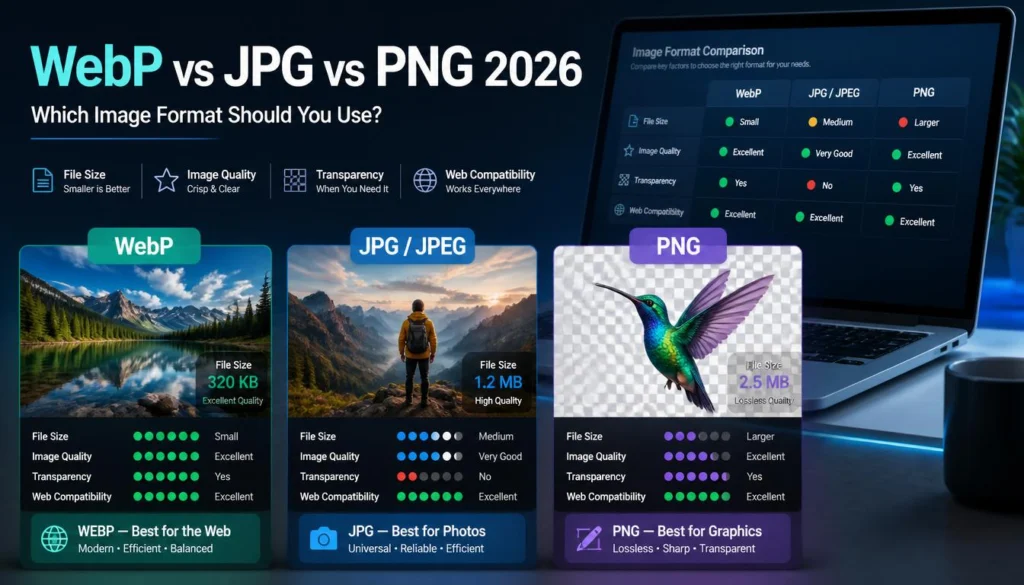
Convert to JPG for photographs, product images on white backgrounds, email attachments, marketplace uploads, and broad compatibility.
-
Convert to PNG for screenshots, graphics with small text, logos, diagrams, or images that need transparency.
-
Keep the original WebP for your website if it is already working there.
1. Choose JPG or PNG before converting
Do not pick the output format at random.
For example, if you are uploading a photo of a chair to an online marketplace, JPG is usually the practical choice. It is widely accepted and keeps photographic files reasonably small.
If you are sending a screenshot of a software dashboard to a developer, PNG is usually better because it preserves small labels, buttons, menu text, and sharp interface edges.
If the Image is a transparent logo, converting it to JPG can create a white background box. In that case, PNG is usually the safer alternative.
2. Convert a copy, not the only file
Keep the original .webp file.
This is particularly important if the Image came from a website you manage. The WebP file may be the best version for browser delivery, even if it is not accepted by a client tool or marketplace.
Create a converted copy with a clear name:
oak-dining-chair.webp

oak-dining-chair-marketplace.jpg

oak-dining-chair-product-page.webp
This avoids overwriting your optimized website asset with a larger compatibility copy.
3. Use a browser-based converter
For a single file or a small batch, a browser converter is the fastest option.
You can turn an unsupported WebP Image into a standard JPG or PNG in your browser. Upload the WebP file, choose the output format that matches the destination, then download the converted copy.
This is useful when you are on a borrowed computer, working on a Chromebook, preparing client assets quickly, or do not want to install another Image application for a single conversion.
4. Check the converted Image before uploading
Open the JPG or PNG after conversion.
Check the details that matter for the next platform:
-
Is the product Image the correct orientation?
-
Does a transparent Image now have the background you expected?
-
Is text still readable?
-
Are colors close to the original?
-
Is the Image within the platform’s upload-size limit?
-
Does the filename make sense?
-
Is the Image cropped correctly?
For a marketplace upload, also check the platform’s minimum dimensions and background rules. Many marketplaces expect a particular Image shape, white background, or a minimum number of pixels. Converting the file solves the format problem, but it does not automatically meet every Image policy.
Fastest Fixes, Ranked
If you need the Image now, use this order.
1. Open the WebP in a browser
Drag the file into Chrome, Edge, Firefox, or Safari.
If it opens, the file is valid. You can either use it where WebP is accepted or convert it.
2. Convert it to JPG for general use
JPG is the default fallback for a regular photo, email attachment, basic client handoff, marketplace upload, or older program.
It works almost everywhere and is usually the right answer when transparency is not required.
3. Convert it to PNG for text or transparency
Choose PNG when the Image includes small text, a software interface, a logo, a diagram, or transparent areas.
PNG can be larger than JPG, particularly for full-color photos, but it avoids the softening that JPG compression can introduce around sharp details.
4. Update the app or use a different viewer
If you work with WebP files frequently, update your Image viewer or use a current browser as a viewer.
This is more efficient than converting every file individually when the problem is simply an outdated app.
5. Ask for the original source format
If the WebP file came from a client, supplier, or web designer and you need a high-resolution version for print, editing, or a large banner, ask for the original asset.
Converting a small WebP into JPG or PNG does not create new Image detail. It only gives you a more compatible copy.
For example, a 700-pixel-wide product Image may be fine for a website, but it may not be suitable for a printed flyer. The original camera file, design export, or high-resolution source is the correct file to request.
Common Mistakes That Cause More Problems
Renaming .webp to .jpg
Changing the filename extension does not convert the Image.
A file named photo.webp does not become a real JPG just because you rename it to photo.jpg. The Image data inside is still in WebP format, and many platforms will detect the mismatch or fail to open it.
Use an actual converter.
Converting transparent images to JPG
JPG does not support transparency.
If you convert a transparent logo, cutout, or icon to JPG, the transparent pixels will be filled with a solid background. White is common, but the result depends on the conversion method.
Use PNG when transparency matters.
Converting a WebP file repeatedly
Avoid this cycle:
WebP → JPG → WebP → JPGEach lossy conversion can reduce Image quality. Keep the original file and make fresh output copies from it when possible.
If you need several versions, create them intentionally:
product-original.webp

product-marketplace.jpg

product-support-screenshot.png
Assuming the conversion improves quality
Conversion changes the file format. It does not increase resolution, remove blur, fix compression artifacts, or restore detail that is missing from the source Image.
If the original WebP is low-resolution, the converted JPG or PNG will still be low-resolution.
Using PNG for every photo
PNG is excellent for screenshots and graphics, but it can produce unnecessarily large files for ordinary photos.
For product photos, lifestyle images, food photography, property interiors, and similar images, JPG is often the more practical format due to its compatibility. Keep PNG for sharp graphics, text-heavy images, and transparency.
Prevent WebP Compatibility Problems
If you create or manage website images, you can avoid many support requests by keeping a clean source-and-delivery workflow.
Keep originals outside the media library
Store original images in a project folder, cloud drive, or asset library. These might be camera JPGs, high-resolution PNGs, layered design files, or original photography exports.
Use WebP copies for website delivery.
That way, when someone needs a marketplace-friendly JPG or print-ready source file, you are not forced to convert a small website version and hope for the best.
Keep a JPG fallback for client-facing folders
For web projects, WebP is often the right format to publish. For client handoffs, product feeds, shared folders, and email attachments, include JPG versions when you know the recipient may use a less predictable workflow.
You do not need to create duplicates for every Image forever. Produce them when the project requires them.
Use the right format for the right asset
A straightforward format policy prevents confusion:
-
Use WebP for web photographs and website imagery.
-
Use JPG for broad sharing, client attachments, marketplaces, and legacy systems.
-
Use PNG for screenshots, transparent images, diagrams, logos, and text-heavy graphics.
-
Keep original source files in a separate archive.
Test uploads before processing a large batch
If a client portal says it accepts JPG, test a converted JPG before converting 200 WebP files.
Check its dimensions, file size, color handling, and naming rules. Some platforms have limits that are not obvious until you attempt an upload.
One test file can save a lot of rework.
Read also: Convert Screenshot to JPG or PNG and Compress It
FAQ
Why is WebP not supported on my computer?
Your computer may support WebP in a modern browser but not in the specific Image viewer, editor, or older application you are using. The issue is often app compatibility rather than the operating system or the WebP file itself.
Try opening the file in a current browser first. If it opens there, convert a copy to JPG or PNG for the unsupported program.
How do I open a WebP file without installing software?
Drag the file into a modern web browser such as Chrome, Edge, Firefox, or Safari. If the Image opens, you can view it without installing a dedicated Image viewer.
To use it in an app or upload portal that rejects WebP, convert the file to JPG or PNG.
Should I convert WebP to JPG or PNG?
Convert to JPG for photographs, marketplace listings, email attachments, and general compatibility. Convert to PNG for screenshots, logos, diagrams, small text, and images that need transparency.
Keep the original WebP if it is already serving its intended purpose on a website.
Does converting WebP to JPG make the file bigger?
It can. WebP is often efficient for web delivery, so converting it to JPG may create a larger file at similar visual quality.
That is normal when you need JPG for compatibility. If file size matters, resize the Image for its intended use before converting.
Can I upload WebP files to WordPress?
Modern WordPress installations generally support WebP uploads, but exact behavior can depend on WordPress version, hosting, plugins, caching, CDN settings, and server Image libraries.
Test a single WebP Image on your own site before changing an entire media workflow.
Use the File Your Destination Accepts
A WebP file that will not open is usually due to a compatibility issue, not a broken Image.
First, confirm it in a browser. Then create a JPG copy for photos and broad compatibility, or a PNG copy for sharp text or transparency. Keep the WebP original for your website when it is already doing its job well.
That simple split—original WebP for the web, JPG or PNG when another system demands it—keeps Image handoffs quick and avoids unnecessary quality loss.