Correct Image Sizes for Instagram & Facebook in 2026
Nine test uploads, three platforms, and four of them came back cropped in a way I didn’t expect. That’s roughly how I ended up with a spreadsheet of exact Image sizes for Instagram and Facebook 2026 specs instead of trusting the “recommended sizes” floating around from a few years back — platforms quietly shift their crop ratios and compression behavior, and a size that worked fine in 2023 can get squeezed or cropped oddly now.
This isn’t a theoretical list pulled from a help page. These are the dimensions that actually held up without visible cropping, stretching, or quality loss when I ran real test images through each placement — feed posts, Stories, covers, profile photos, the works.
Why This Keeps Changing (and Why It’s Worth Checking Now)
Both platforms compress images on upload regardless of what you send them, but the aspect ratio they expect and how aggressively they crop off-ratio images has shifted more than once. Facebook’s cover photo crop, in particular, behaves differently on mobile versus desktop, which catches a lot of people off guard — an Image that looks perfect in the desktop preview can lose important content on a phone screen.
Instagram Image Sizes That Actually Work
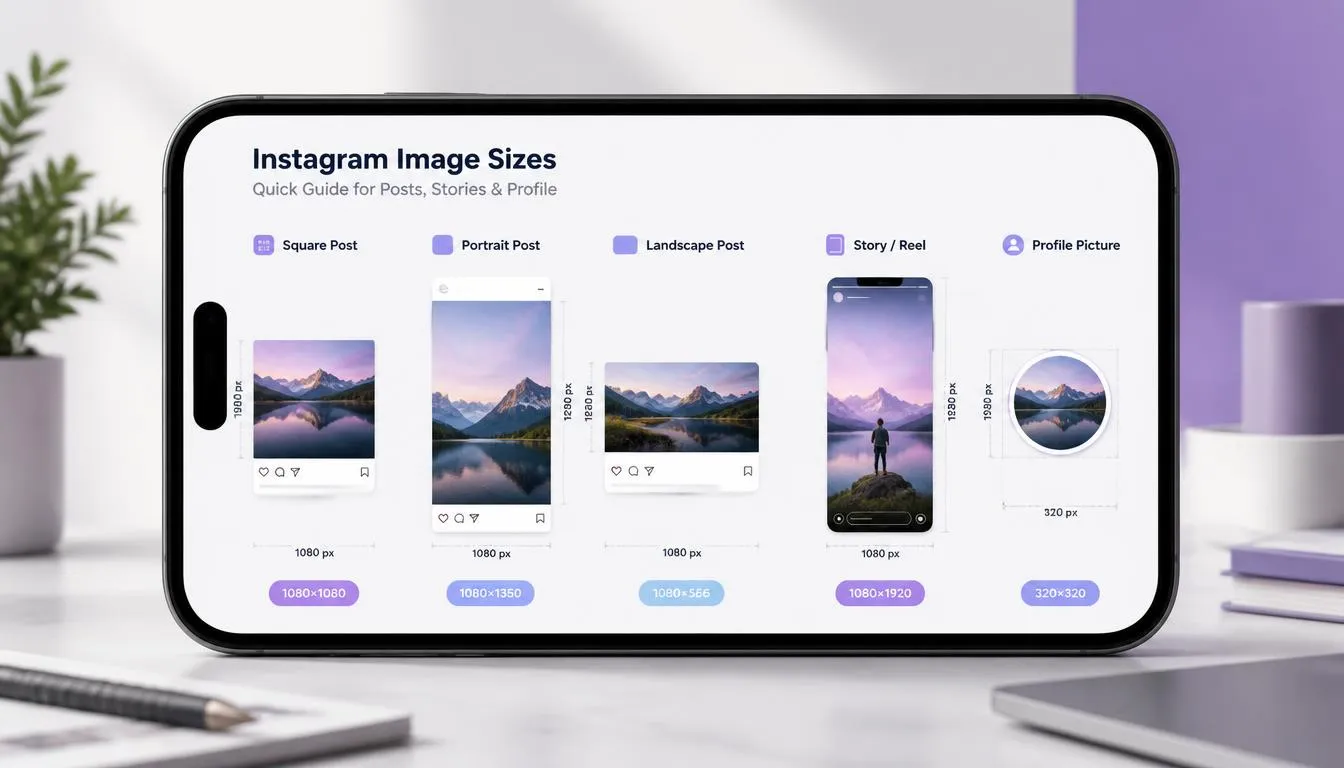
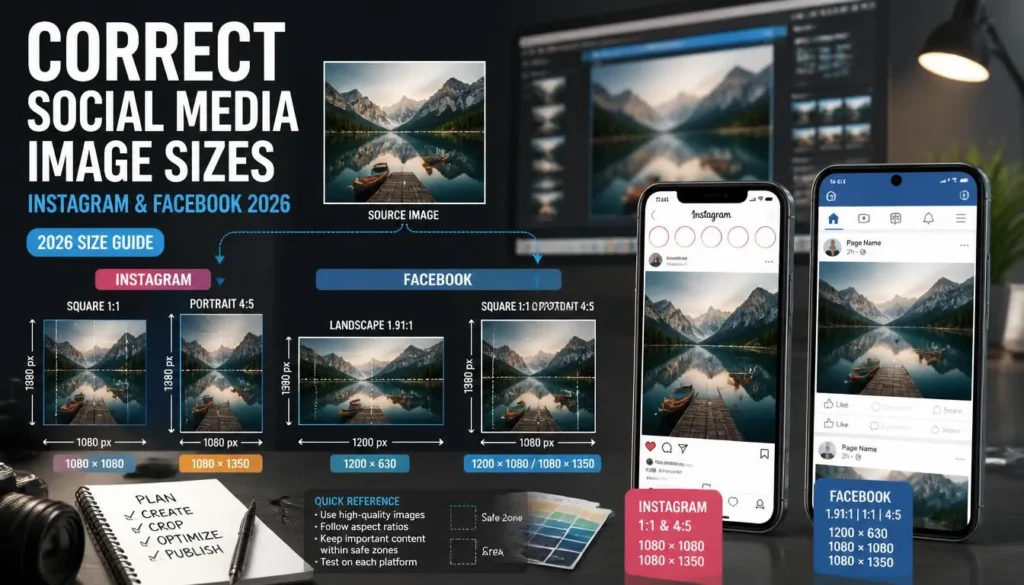
Feed posts (square): 1080×1080px
Feed posts (portrait): 1080×1350px — this is the tallest ratio Instagram allows before cropping kicks in, and it tends to perform better in the feed simply because it takes up more vertical scroll space.
Feed posts (landscape): 1080×566px
Stories and Reels: 1080×1920px (9:16 ratio)
Profile picture: 320×320px minimum, though Instagram displays it small regardless — 500×500px gives you room without wasting file weight.
A mistake I made early on: uploading a portrait Image at 1080×1500px, assuming “taller is better.” Instagram cropped it to a max height of 1350px, cutting off part of the subject’s face in the process. Stick to the ratio limits even if your original photo is taller.
Facebook Image Sizes That Actually Work
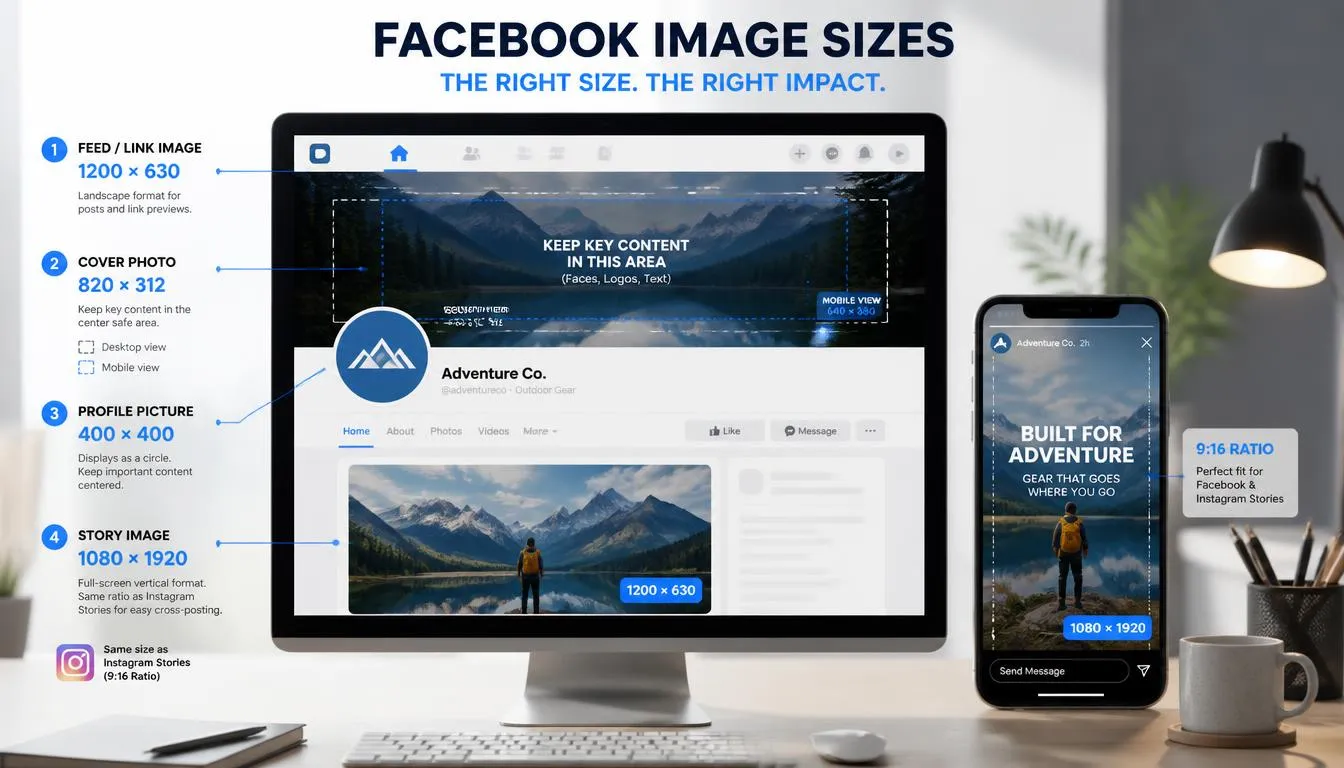
Shared feed Image: 1200×630px — this is also the size Facebook uses for link previews, so it does double duty if you’re sharing a blog post.
Cover photo: 820×312px on desktop, but it displays at roughly 640×360px on mobile, and the platform crops the sides differently between the two. Keep anything important — text, logos, faces — centered in the middle third of the Image, not near the edges.
Profile picture: 170×170px on desktop, 128×128px on mobile — Facebook will accept a larger upload and scale it down, so uploading at 400×400px keeps it sharp across both.
Facebook Stories: 1080×1920px, matching Instagram’s Stories ratio exactly, which makes cross-posting between the two far simpler than it used to be.
Step-by-Step: Resizing and Exporting for Both Platforms
Step 1: Start With the Largest Ratio You’ll Need
If you’re posting the same Image to Instagram feed and Facebook Stories, crop for the 9:16 Stories ratio first, then crop a square or landscape version from that same source. Going the other direction — cropping a square down to 9:16 — usually means losing part of the Image you actually wanted in frame.
Step 2: Resize to the Exact Pixel Dimensions
Don’t just eyeball it in a phone editor. Resize to the exact width and height listed above before exporting — leaving it slightly off-ratio is what triggers the auto-crop behavior that clips faces and text.
Step 3: Export as JPG or PNG, Not HEIC
Both platforms will automatically convert an iPhone HEIC file, but letting them do so means giving up control over compression quality. Converting to JPG yourself beforehand, at around 85% quality, keeps the visible quality closer to your original.
Step 4: Keep File Size Reasonable Before Upload
Neither platform needs a 15MB source file — they’ll compress it down regardless, sometimes harder than you’d like. Getting your Image down to a reasonable size yourself, rather than leaving it entirely to the platform’s compression algorithm, gives you more control over how the final post looks. A quick pass through ImagArt’s Image resizing and format tool handles this in under a minute for a whole batch.
Step 5: Preview on Mobile Before Publishing
Especially for Facebook covers — the desktop editor preview and the actual mobile crop are genuinely different. Publish, check it on your phone, and adjust if something important got cut off near the edges.
Common Mistakes
- Uploading a random size and letting the platform crop it. Both Instagram and Facebook will accept almost any dimensions and just crop to fit — the result is rarely what you intended.
- Ignoring the mobile crop for Facebook covers. What looks centered on desktop can shift toward the edges on mobile, where most traffic actually comes from.
- Uploading oversized originals assuming “bigger is always sharper.” Past a certain resolution, the platform’s own compression flattens the extra detail anyway — you’re just uploading more data for no visible gain.
- Using the same square crop for every placement. A square that works for a feed post loses most of the frame when auto-cropped into a 9:16 Story.
FAQ
What’s the best Image size for Instagram in 2026?
For a standard feed post, 1080×1080px square or 1080×1350px portrait. For Stories or Reels, 1080×1920px.
Does Facebook still compress images after upload?
Yes. Both platforms apply their own compression regardless of the quality you upload at, which is part of why starting with a reasonably optimized file — not an untouched multi-megabyte original — tends to preserve more visible detail.
Why does my Facebook cover photo look different on mobile than desktop?
Facebook crops the cover photo differently depending on device. Desktop shows more of the width; mobile shows a narrower, more zoomed-in crop, so anything important should be centered rather than near the edges.
Can I use the same Image for Instagram Stories and Facebook Stories?
Yes — both use the same 1080×1920px, 9:16 ratio, so one export works for both without additional cropping, per Meta’s own Instagram Image specification guidelines.
Should I convert HEIC photos before uploading to Instagram or Facebook?
It’s worth doing. Both platforms will convert HEIC automatically, but you lose control over the resulting quality and file size — converting to JPG yourself first gives you a more predictable result.