Ideal Image File Size for Websites: Practical Targets and How to Test (2026)
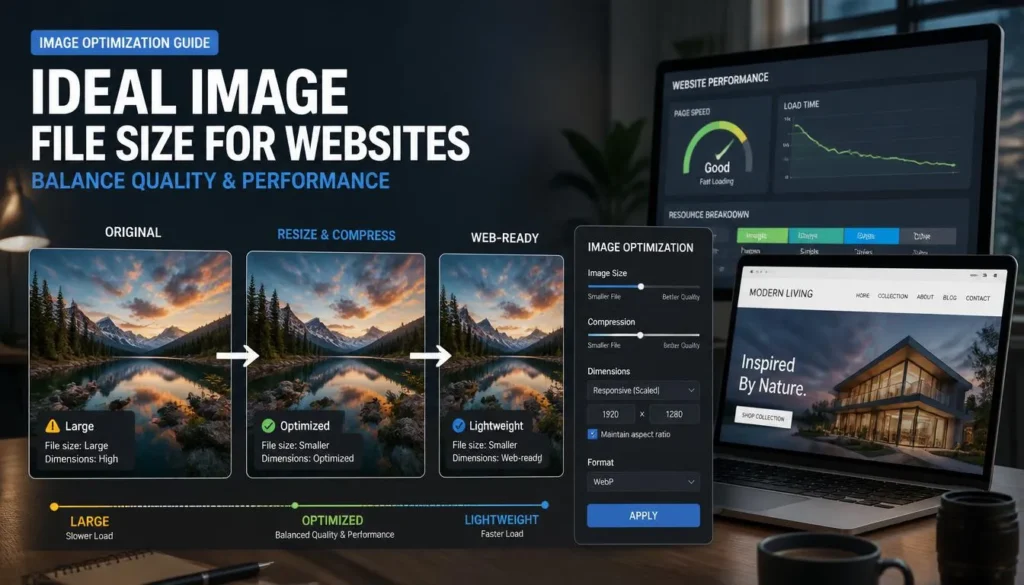
There is no single ideal file size for every website image. The right target depends on the image’s dimensions, format, visual quality, display size, and role on the page.
This guide explains practical starting points for image file sizes, why resizing matters, how to compare JPG, PNG, and WebP, and which HTML attributes can help images load efficiently. You can also use the free ImagArtAI converter to test different settings on your own images.
The Short Answer: Practical Image Size Targets
The following ranges are starting points for common website images, not official Google limits. Your results will vary depending on the image content, dimensions, compression settings, and quality requirements.
| Image type | Typical display width | Suggested starting target |
|---|---|---|
| Full-width hero or banner | Up to 1920 px | 150–300 KB |
| Image inside a blog post | 800–1200 px | 50–150 KB |
| Thumbnail or card image | 150–400 px | Under 30 KB |
| Logo or simple icon | Depends on use | A few KB where practical; consider SVG for vector artwork |
These targets are not strict limits. A detailed photograph may need more data to preserve its quality, while a simple illustration may look good at a much smaller size.
Start by choosing appropriate dimensions. Then compress the image and compare the result at the size at which visitors will actually see it.
Why Image Dimensions Matter
Imagine a photograph that is 6000 pixels wide but appears inside an 800-pixel-wide article column. Depending on the layout and screen density, the browser may not need the full-resolution original.
Creating a suitably resized version can reduce the amount of image data visitors download. You can then adjust the compression settings to find a reasonable balance between file size and visual quality.
This is why a universal rule such as “keep every image under 200 KB” is not particularly useful. A small thumbnail and a large hero image have different requirements.
For responsive websites, consider providing multiple image sizes so that browsers can select an appropriate version for different screens.
How to Test Image File Sizes Yourself
Rather than relying on a universal compression percentage, compare different settings using the same source image. This helps you see how the format, dimensions, and quality setting affect the result.
You can perform the comparison with the ImagArtAI image converter.
Step 1: Choose a source image
Select a photograph that you have permission to use. Record its original dimensions, file format, and file size.
For a useful comparison, keep the same source image for each conversion. Otherwise, differences in image content can make the results difficult to interpret.
Step 2: Create comparable versions
Try the following settings as a starting point. The table is a test plan, not a record of completed experiments.
| Version | Format | Quality setting | Maximum width |
|---|---|---|---|
| Original | Original format | Unchanged | Original dimensions |
| A | JPG | 80, if supported | 1920 px |
| B | WebP | 80, if supported | 1920 px |
| C | WebP | 80, if supported | 1280 px |
| D | PNG | Lossless | 1920 px |
Check the converter’s actual controls before using these settings. Different tools may interpret quality values differently, and not every format uses the same compression method.
If you compare PNG with JPG or WebP, remember that PNG is lossless, while JPG and many WebP conversions can use lossy compression. A fair comparison should consider both file size and the visual quality appropriate for the image.
Step 3: Record the actual results
After converting the image, complete the table with the values produced by your tests.
| Version | Actual file size | Visual quality | Notes |
|---|---|---|---|
| Original | Record the result | Reference image | Original dimensions and format |
| A — JPG | Record the result | Inspect the image | Note visible compression artifacts |
| B — WebP | Record the result | Inspect the image | Compare with version A |
| C — Resized WebP | Record the result | Inspect the image | Check detail at the intended display size |
| D — PNG | Record the result | Inspect the image | Check whether lossless output is necessary |
To make the comparison more useful, examine the images at their intended display size and at a closer zoom. Look for blurred edges, blockiness, color changes, and loss of fine detail.
If you publish numerical conclusions, calculate them from your recorded results.
Percentage reduction in file size:
[
\frac{\text{Original size}-\text{New size}}{\text{Original size}}\times100
]
For example, if a file decreases from 500 KB to 200 KB, the reduction is 60%. This is a mathematical example, not a result from a test of ImagArtAI.
Step 4: Explain the limitations
A single photograph cannot establish that one format or quality setting will always be best. Photographs, screenshots, illustrations, and transparent graphics can produce different results.
For stronger conclusions, repeat the comparison with several representative images and document the settings used.
For a broader comparison of image formats, see our guide to WebP vs. JPG vs. PNG.
Which Image Format Should You Choose?
JPG
JPG is a common choice for photographs. It uses lossy compression, which can substantially reduce file size but may introduce visible artifacts at aggressive settings.
Use it when you need a widely compatible format and can accept some loss of image detail.
WebP
WebP supports both lossy and lossless compression. It is a useful option for website photographs and graphics because it can offer a good balance between image quality and file size.
Compare the output with your original rather than assuming that the same quality number produces equivalent results across formats.
PNG
PNG supports lossless compression and transparency. It can be suitable for screenshots, interface graphics, and images that require transparent backgrounds.
PNG is not automatically larger than every JPG or WebP file. The result depends on the content and the compression method, so compare the actual files when size matters.
SVG
SVG is a vector format suited to logos, icons, and illustrations made from vector shapes. It can scale without the pixelation associated with raster images.
Use SVG when the artwork is appropriate for a vector format and the file comes from a trustworthy source.
AVIF
AVIF is another modern image format that can provide efficient compression. Consider it when your website platform and delivery workflow support it, and test image quality and compatibility before adopting it across your site.
Three HTML Features That Help Images Load Efficiently
File size is only one part of image performance. The way a browser selects and loads an image also matters.
1. Use Responsive Images with srcset and sizes
These attributes let the browser choose among available image files based on the layout and device.
<img
  src="photo-800.webp"
  srcset="photo-480.webp 480w,
          photo-800.webp 800w,
          photo-1200.webp 1200w"
  sizes="(max-width: 800px) 100vw, 800px"
  width="800"
  height="533"
  alt="A descriptive summary of the actual image"
  loading="lazy">
The file paths above are examples. You must provide the corresponding image files on your website for this markup to work.
The srcset attribute lists available image versions, while sizes describes the expected display width under different layout conditions. The browser uses this information to select an appropriate resource.
2. Set width and height
Providing the image’s intrinsic width and height helps the browser reserve space before the image finishes loading. This can reduce unexpected layout shifts.
Make sure these values reflect the image’s actual dimensions and that your CSS preserves the intended aspect ratio.
3. Use Lazy Loading Where Appropriate
For images that appear well below the initial viewport, loading="lazy" can defer downloading until the browser needs the image.
Avoid applying lazy loading indiscriminately. An important hero image or other image visible immediately when the page opens should generally load eagerly. For a critical hero image, fetchpriority="high" may help the browser prioritize it when appropriate.
For more information, read Google’s documentation on image SEO best practices and web.dev’s guide to Largest Contentful Paint.
A good LCP target is 2.5 seconds or less, measured at the 75th percentile of page loads. Image optimization can help, but LCP also depends on other factors, including server response time and how quickly the main content is rendered.
Three Image Optimization Mistakes to Avoid
1. Compressing Before Checking Dimensions
If an image is much larger than its intended display size, resize it first. Then adjust compression settings if necessary.
Remember to account for responsive layouts and high-density screens rather than matching every image to a single fixed width.
2. Repeatedly Re-saving Lossy Images
Repeated lossy encoding can introduce additional quality degradation. Keep the original file and create new exports from it whenever possible.
3. Guessing Instead of Measuring
Do not assume that a large image is the only reason a page loads slowly. Use PageSpeed Insights to investigate performance and identify opportunities for improvement.
You can also follow our guide on how to check whether images are slowing down your website.
Frequently Asked Questions
Is 200 KB a strict limit for website images?
No. It is a possible target for some images, not an official limit. The appropriate file size depends on the image’s dimensions, visual complexity, compression settings, and intended use.
Do image dimensions or file size matter more?
They address different problems. Dimensions determine how many pixels are available, while file size determines how much data must be downloaded. Resizing oversized images and choosing suitable compression settings can both help.
Can I use WebP for every website image?
WebP is suitable for many website images, but the best choice depends on the image and your workflow. Check transparency requirements, visual quality, compatibility with the software used by your audience, and whether another format is more appropriate.
Should I use PNG for transparent images?
PNG is a common choice for transparent raster images. WebP and SVG can also support transparency in suitable workflows. Choose the format that meets your visual and compatibility requirements.
Does reducing image file size always improve page speed?
Reducing unnecessary image data can help, but it does not guarantee a faster page. The number of requests, responsive image selection, caching, server performance, and loading priorities also affect the overall experience.
Conclusion
There is no single file-size target that works for every website image. Choose appropriate dimensions, compare compression settings, and check the visual quality before publishing.
Use responsive images where appropriate, reserve space with accurate width and height attributes, and defer below-the-fold images without delaying critical content.
You can try different formats and settings with the free ImagArtAI image converter. Compare the resulting files to determine which settings work best for your own images.