
Website Slow Images: How to Check If That’s Really the Problem
Eleven images on one landing page, total weight past 14MB, and not one of them had been resized since the day someone dragged them out of a phone’s camera roll. That’s what showed up the first time I ran a real audit on a client site that “felt fine” to the owner but scored in the 30s on mobile speed tests.
Slow website images are among the most common performance problems and among the easiest to misdiagnose. People blame the host, the theme, a plugin, anything but the actual photos sitting in the media library. Sometimes it really is one of those other things. But images are worth ruling out first, because checking them takes 10 minutes, and fixing them is usually the biggest single win available.
Here’s how to actually find out whether slow website images are dragging your site down, instead of guessing.
Why This Symptom Is Easy to Misread
A slow page can have several causes stacked on top of each other: too many plugins, an unoptimized database, a bloated theme, a cheap host, render-blocking scripts. Images tend to get blamed by default because they’re visible and easy to point at. Sometimes that’s fair. Often the real story is more specific — not “too many images,” but one or two oversized files dragging the whole page down while the rest are fine.
That distinction matters, because it changes what you fix. Resizing everything on the site when only three images are the problem wastes time. Ignoring images because “the theme is probably the issue” wastes more.
How to Check for Website Slow Images
1. Run a real speed test, not a guess
Start with a tool that measures actual load performance rather than eyeballing how fast the page feels. Google PageSpeed Insights and GTmetrix both work well, and both are free. Test the mobile score specifically — mobile connections and processors make Image weight far more obvious than a fast office wifi connection on desktop ever will.
Look for anything labeled “Properly size images,” “Serve images in next-gen formats,” or “Efficiently encode images.” If one or more of those shows up near the top of the recommendations, that’s a strong signal that you’re dealing with slow-loading images on the website rather than something else entirely.
2. Check total page weight, then isolate the images
In your browser, right-click the page and choose Inspect, then open the Network tab and reload with cache disabled. At the bottom, you’ll see total page size and total load time. Then filter the requests by Img to see what portion of that weight comes from images alone.
If images make up more than half of your total page weight, that’s usually the culprit to chase first. I’ve seen pages where images accounted for over 80% of the downloaded data, which makes the next steps almost self-evident.
3. Look at individual file sizes, not just the total
Click through the Image requests in that same Network tab and sort by size. A single 3–5 MB photo will often outweigh a dozen properly optimized ones combined. This step is where you identify the specific offenders rather than vaguely blaming “images” as a category.
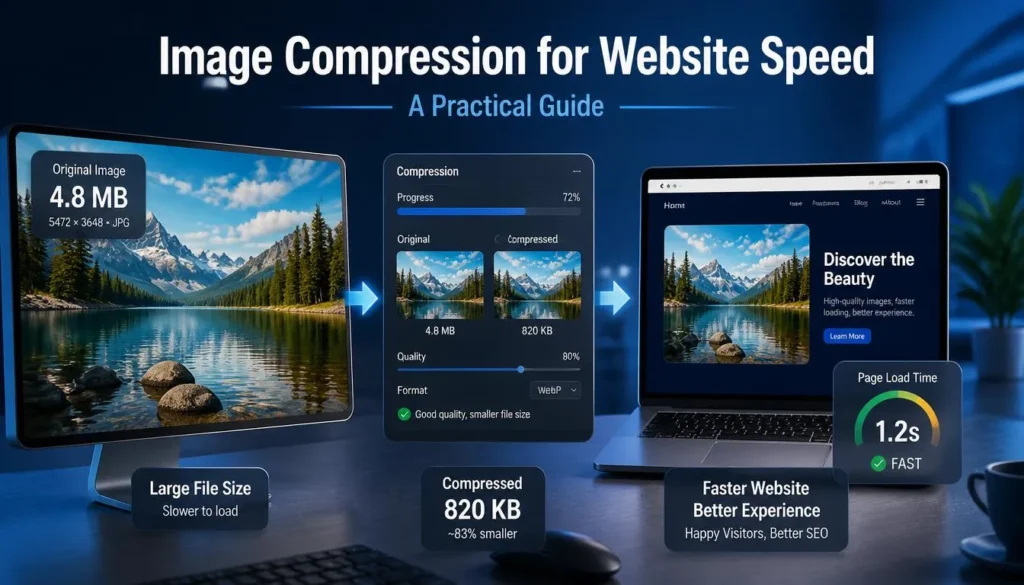
Pay attention to dimensions too, not just file size in kilobytes. A photo that’s 4000 pixels wide, displayed in a 600-pixel-wide blog column, is being resized down by the browser at load time. The full file still has to download first. That’s wasted data no matter how well it was compressed.
4. Check the format each Image is using
Open the same Network tab entries and look at the Type column. JPG and PNG are still common, and PNG in particular is used for photographs far more than it should — it’s a lossless format built for graphics with flat colors, not gradients and skin tones, so PNG photos tend to be noticeably larger than the same Image saved as JPG or WebP.
Switching heavy JPGs and PNGs to WebP typically reduces file size by a meaningful margin while maintaining visually equivalent quality, according to the W3C’s WebP compression documentation, without a visible quality hit at normal viewing distances.
5. Confirm images are actually the bottleneck, not just a factor
Before committing to a full re-optimization pass, temporarily disable Image loading (most browsers let you do this via developer tools or an extension) and reload the page. If the load time drops dramatically, you’ve confirmed that slow-loading images are your primary problem. If it barely changes, something else — a plugin, a slow server response, unminified scripts — deserves attention first.
This step alone has saved me from spending an afternoon compressing photos on a site where the real issue turned out to be a chat widget script loading from a slow third-party server.
Common Mistakes People Make Here
Assuming quantity is the problem instead of individual file size. Twenty well-optimized images can weigh less than three bad ones.
Compressing without resizing dimensions first. A quality slider only does part of the job. Oversized dimensions are often the bigger issue.
Fixing images and stopping there. If the speed score barely moves after optimization, there’s another bottleneck still waiting to be found.
Trusting “it looks fine to me.” A fast home connection on a new laptop can hide problems that show up immediately on an older phone over mobile data, which is exactly what a speed test is designed to catch.
Skipping the before-and-after comparison. Always retest after making changes. It confirms the fix actually worked and tells you whether it’s time to look elsewhere.
Preventing Website Slow Images From Coming Back
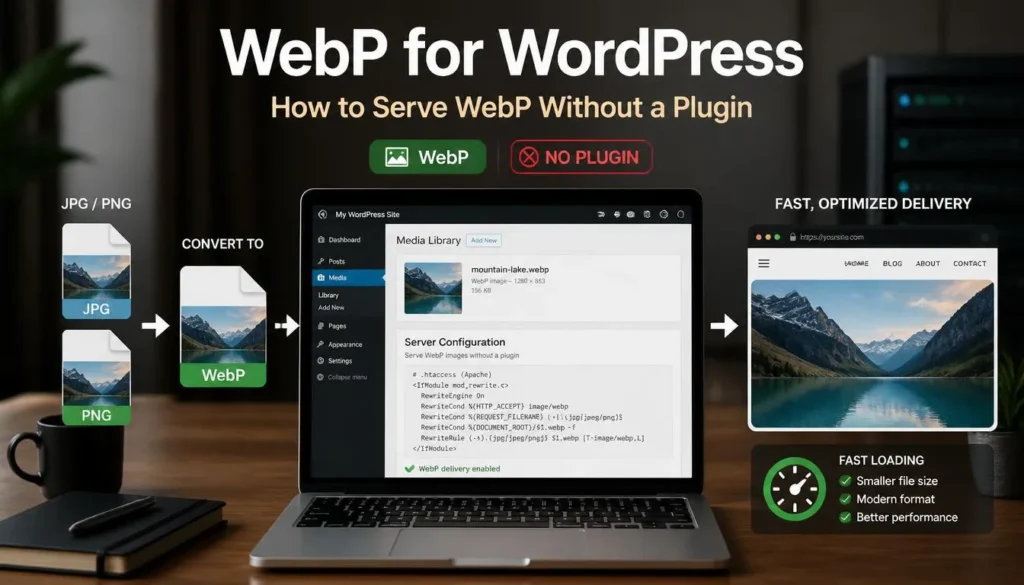
Set a personal rule for Image dimensions before you ever upload — most blog and product layouts don’t need anything wider than 1600–2000 pixels. Convert to WebP as a habit rather than an afterthought; running new photos through a converter like ImagArtAI before they ever touch your media library keeps the problem from creeping back in one upload at a time. And if you’re on WordPress specifically, pairing this habit with proper delivery setup, covered in our guide on serving WebP images on WordPress without a plugin, closes the loop between having good files and actually serving them efficiently.
FAQ
How do I know if website slow images are really the problem?
Run a speed test, check what portion of total page weight comes from images in your browser’s Network tab, and try disabling Image loading to see how much the load time changes. If it drops sharply, images are a major factor.
What’s a reasonable file size for a web Image?
There’s no single number that fits every case, but as a general target, most web photos look fine well under 200KB after proper compression and resizing. Hero images and banners can run larger, though even those rarely need to exceed 300–400KB.
Does Image format really make that much difference?
Often, yes. Switching a photo-heavy PNG to JPG or WebP can substantially reduce file size without a visible loss in quality, especially for photographs rather than flat-color graphics.
Can too many images slow a site even if each one is small?
It’s possible, but far less common than a few oversized files. Check individual file sizes before assuming quantity is the issue.
Will fixing my images guarantee a fast website?
No. Slow website images are frequently the biggest factor, but not always the only one. Server response time, unoptimized plugins, and heavy scripts can all contribute too, so it’s worth confirming with the disable-images test before assuming the job is done.