
Free Image Converter: WEBP, JPG, and PNG
Convert images in seconds, then compress and resize them directly in your browser. Your files are never uploaded, keeping the entire process fast and private.
- 100% private
- Batch conversion
- Free, no sign-up
- Works on phone and desktop
PNG is lossless, so the quality setting does not apply.
Resizing is the fastest way to cut file size. Small images are never enlarged.
JPG cannot store transparency, so transparent pixels are filled with this color.
Example: photo-converted.webp. Your original files are never changed.
Your images are processed on your device and never leave your browser.
How to convert images online
You do not need to install anything or create an account. Converting takes three steps.
- Add your images. Drag them onto the box above, choose them from your device, or paste a screenshot with Ctrl+V. You can add up to 50 images at once.
- Choose the format and quality. Pick WEBP, JPG, or PNG. If you want smaller files, lower the quality a little or set a maximum width.
- Convert and download. Each image shows its new size right away. Download images one by one, or get them all together in a single ZIP file.
WEBP, JPG, or PNG: which format should you choose?
Each format was designed for a different job. Choosing the right one matters more than any quality slider.
| Format | Best for | Transparency | File size | Compatibility |
|---|---|---|---|---|
| WEBP | Websites, blogs and online stores | Yes | Usually the smallest | All modern browsers. Some older editing programs cannot open it. |
| JPG | Photos, email attachments and social media | No | Small | Opens almost everywhere |
| PNG | Logos, screenshots, graphics with text, images that need a transparent background | Yes | Large, because nothing is discarded | Opens almost everywhere |
A simple rule: use WEBP for pages on your website, JPG when you need a file that works in any app, and PNG when you need transparency or perfectly sharp edges. For a more in-depth comparison, read our guide to WEBP vs. JPG vs. PNG.
Why use this converter
Most online converters make you upload every file to a server and wait. This one works differently.
Private by design
Conversion runs inside your browser. Your images are never sent to us or anyone else.
Batch conversion
Convert dozens of images in one go and download them together as a ZIP file.
See the savings
Every image shows its old size, its new size, and how much smaller (or larger) it became.
Resize while converting
Set a maximum width to shrink large camera photos for the web in the same step.
Safe for transparent PNGs
When you convert to JPG, transparent areas are filled with a color you choose instead of turning black.
Hidden data removed
Camera details and GPS location stored in a photo are not copied into the converted file.
Popular conversions
Pick a shortcut to set the output format, then add the images you want to convert.
How to get smaller files without visible quality loss
- Resize first. A 6000-px-wide photo is far larger than any screen needs. Setting a maximum width of 1920 px often cuts the file size by more than half.
- Use a quality between 75 and 85. For most photos, the difference from 100 is hard to see, but the file is much smaller.
- Choose WEBP for your website. It is usually smaller than JPG at similar visual quality, which helps your pages load faster.
- Keep PNG for graphics. Use it for logos, icons, and screenshots, not for photographs.
- Avoid converting the same JPEG repeatedly. Each lossy save discards a little more detail, so keep your original file.
Frequently asked questions
Are my images uploaded to a server?
No. The conversion happens in your browser on your device. Your images are never uploaded, stored, or shared, and they disappear when you close or refresh the page.
Will I lose quality when I convert?
It depends on the format. PNG is lossless. JPG and WEBP are lossy, which means they discard a small amount of detail to save space. At a quality of 80 to 90 the difference is usually invisible. Converting a JPG to PNG cannot bring back detail that was already lost.
Which quality setting should I use?
For websites and blogs, 75 to 85 is a good balance. For photography you want to keep or print, use 90 or higher. Use the Smallest file preset when file size matters more than perfect detail.
Why did my file get bigger after converting?
This usually happens when converting a JPG or WEBP to PNG, or when the original was already heavily compressed. PNG stores every pixel without discarding anything, so photos become much larger. Choose WEBP or JPG for smaller file sizes.
What happens to transparent backgrounds?
PNG and WEBP keep transparency. JPG does not support it, so when you convert to JPG, the transparent areas are filled with the background color you choose. White is the default.
Can I convert many images at once?
Yes. Add up to 50 images, each up to 25 MB, and convert them together. When you download more than one image, they are packed into a single ZIP file.
Is there any personal data left in the converted image?
Converted images do not retain the hidden metadata from the original, such as the camera model or GPS location. This makes them safer to share online.
Which files can I add?
You can add any image your browser can open, including JPG, PNG, WEBP, GIF, BMP, and HEIC (the format used by iPhone photos). Animated GIFs are converted using only their first frame.
Does it work on my phone?
Yes. The tool works in modern mobile browsers. Very large photos can be slow on older phones, so try setting a maximum width if a conversion fails.
Latest blog posts
-

What Is the Ideal Image File Size for a Website?
Read article: What Is the Ideal Image File Size for a Website?Ideal Image File Size for Websites: Practical Targets and How to Test (2026) There is no single ideal…
-
Why Is PNG Bigger Than JPG? (Real Size Tests)
Read article: Why Is PNG Bigger Than JPG? (Real Size Tests)Why Is My PNG Bigger Than the Original JPG? (Real File-Size Tests) A 4MB PNG and the 380KB…
-
Website Slow Because of Images? Here’s How to Check
Read article: Website Slow Because of Images? Here’s How to CheckWebsite Slow Images: How to Check If That’s Really the Problem Eleven images on one landing page, total…
-
Best Image Format for Ecommerce: 2026 Product Photo Guide
Read article: Best Image Format for Ecommerce: 2026 Product Photo GuideBest Image Format for E-commerce Product Photos in 2026 A 4MB PNG and a 300KB WebP, same product,…
-
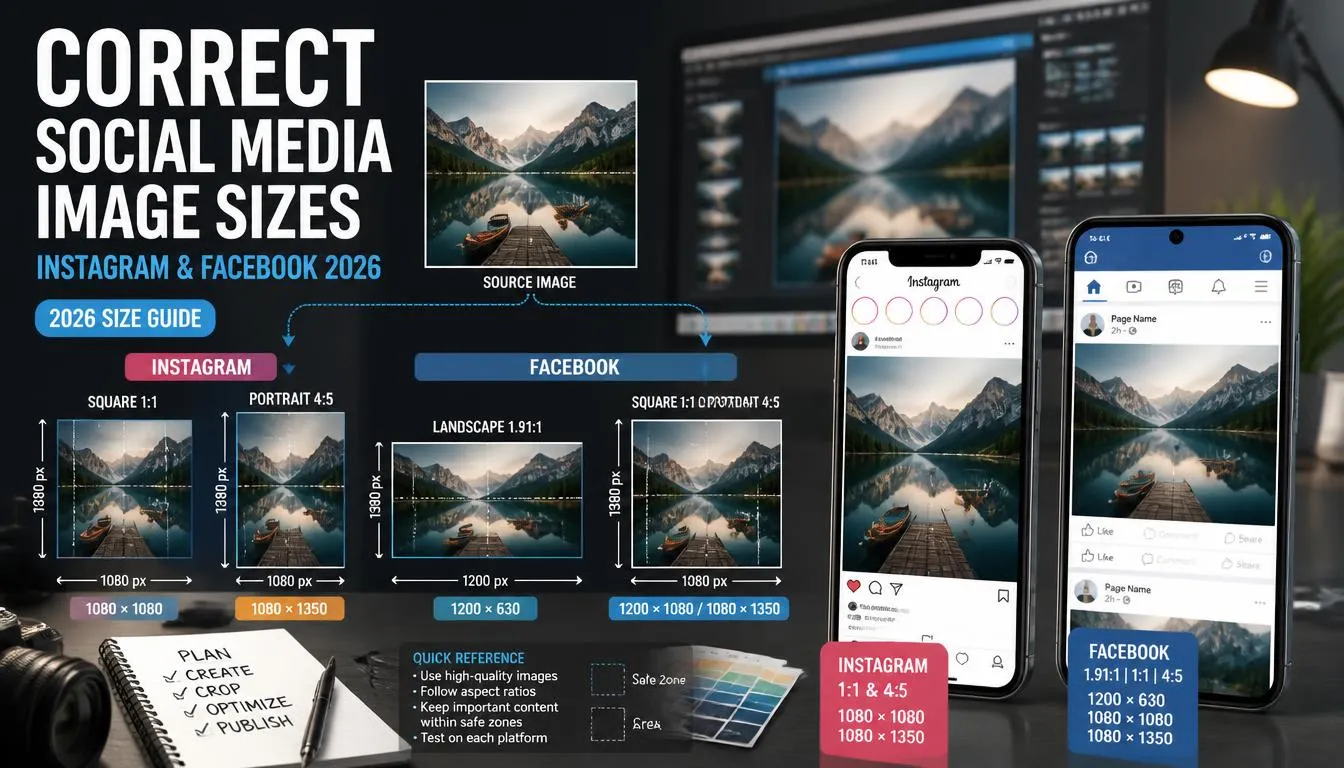
Correct Image Sizes for Instagram & Facebook 2026
Read article: Correct Image Sizes for Instagram & Facebook 2026Correct Image Sizes for Instagram & Facebook in 2026 Nine test uploads, three platforms, and four of them…
-
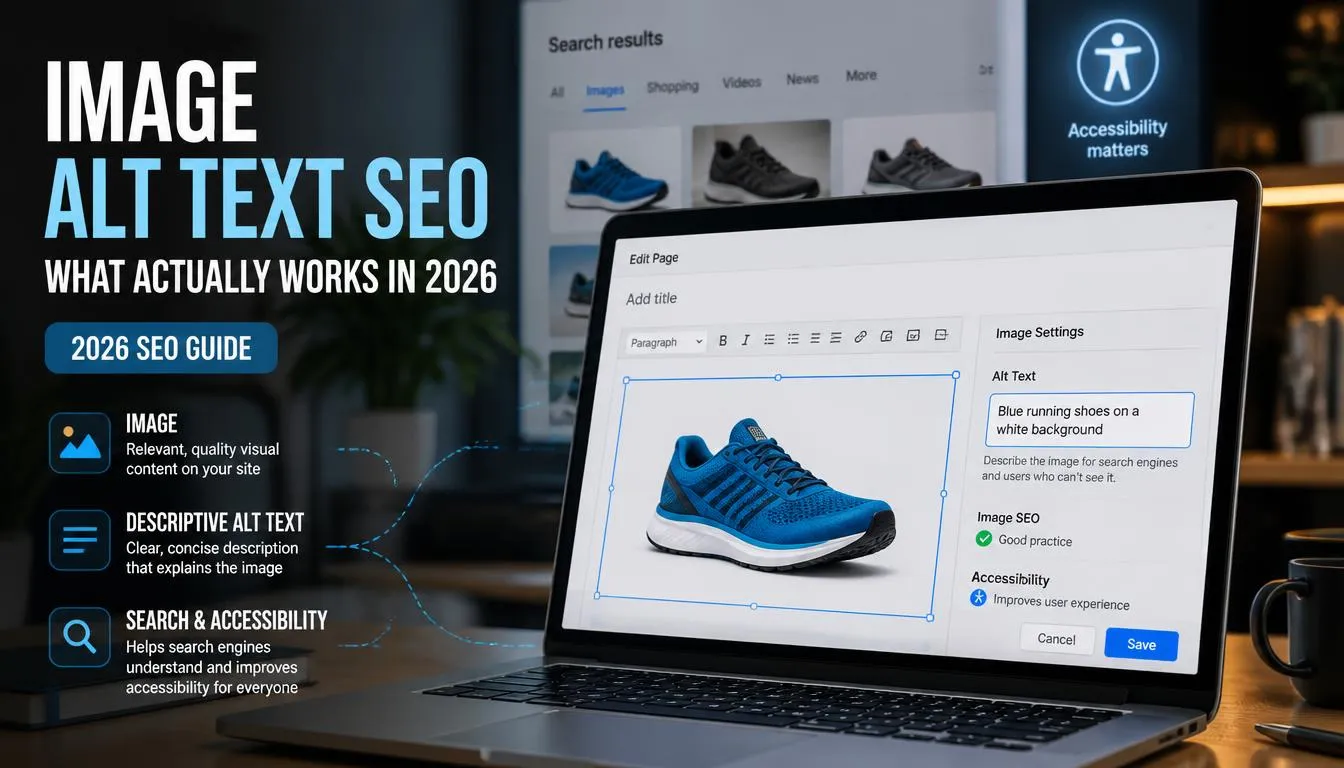
Image Alt Text SEO: What Actually Works in 2026
Read article: Image Alt Text SEO: What Actually Works in 2026Image Alt Text SEO: What Actually Works in 2026 A form that keeps rejecting your photo for being…
-
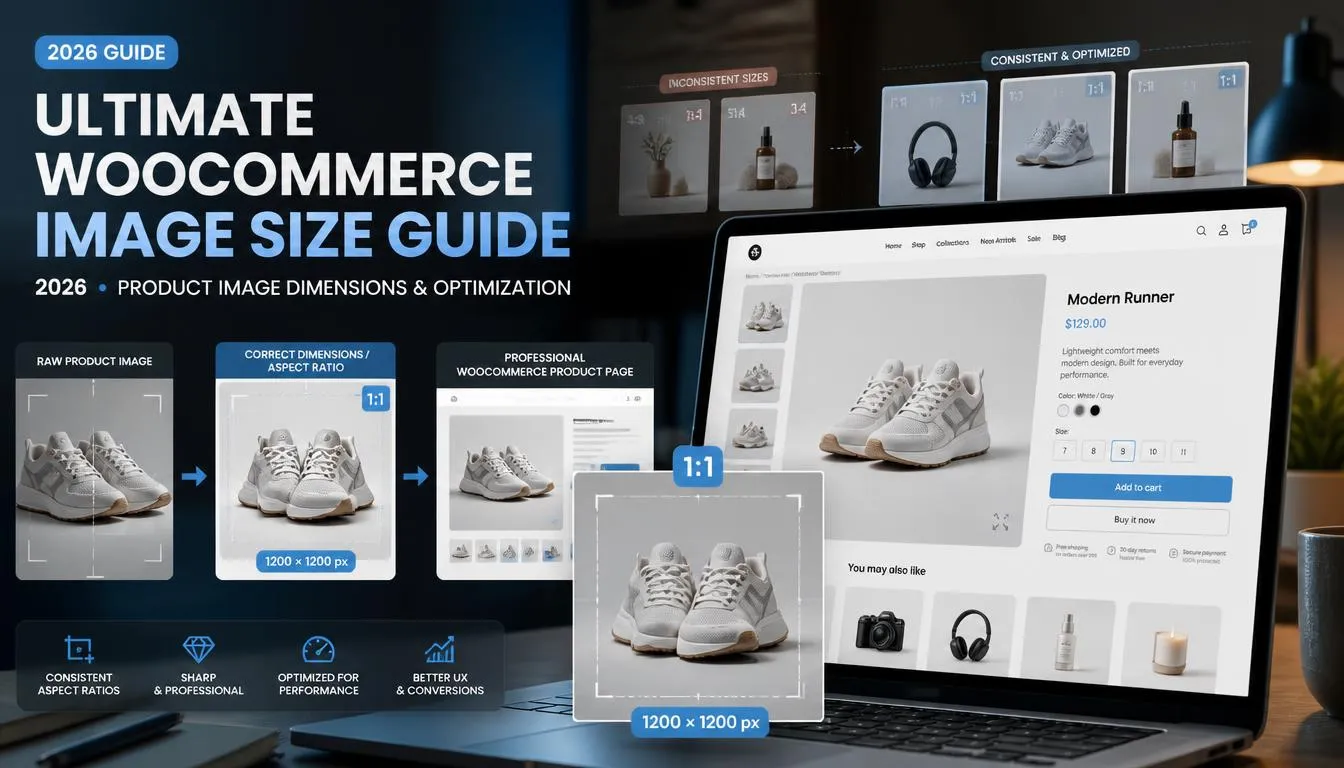
WooCommerce Product Image Size & Format Guide (2026)
Read article: WooCommerce Product Image Size & Format Guide (2026)Ultimate WooCommerce Product Image Size Guide (2026) Getting your WooCommerce product Image size right is the single biggest…
-
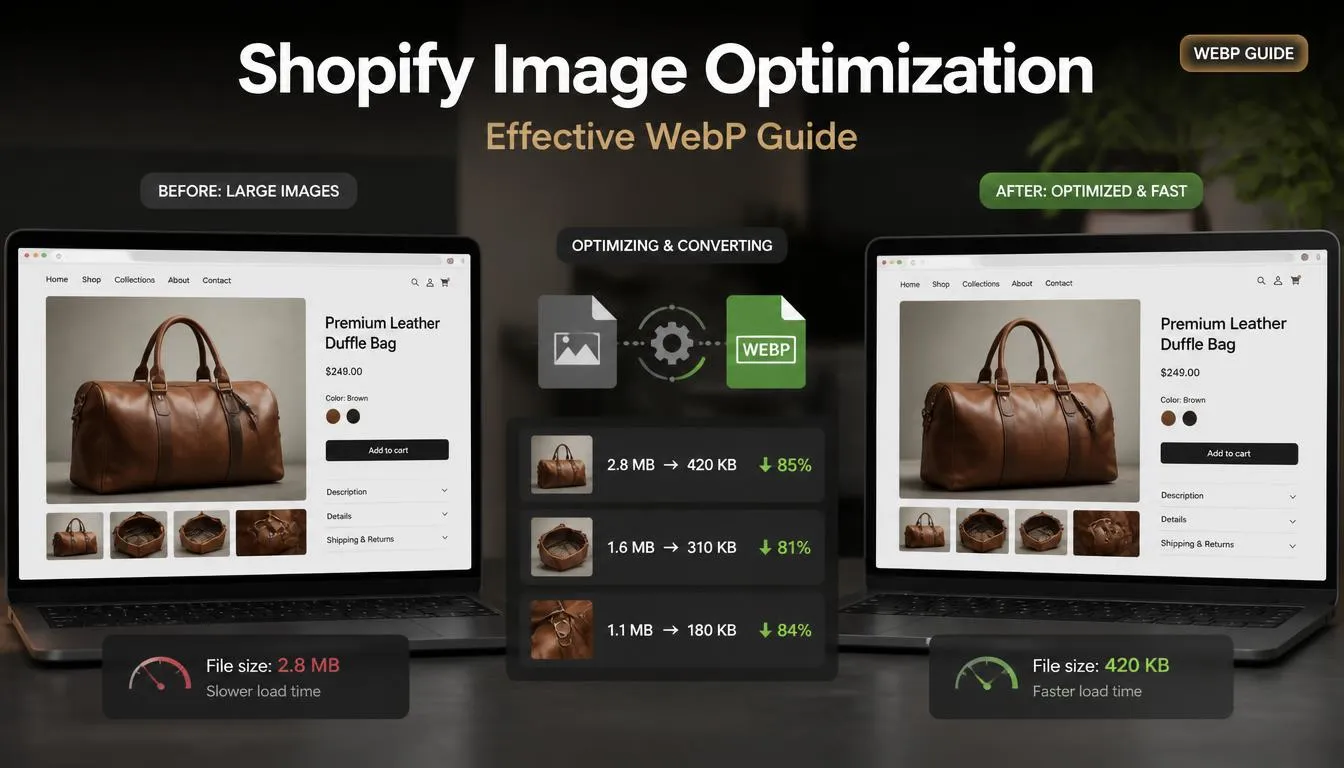
Shopify Image Optimization: Convert Photos to WebP
Read article: Shopify Image Optimization: Convert Photos to WebPI once inherited a Shopify store with 340 products, each one carrying three to five photos straight off…
-
WebP for WordPress: How to Serve WebP Without a Plugin
Read article: WebP for WordPress: How to Serve WebP Without a PluginHow to Serve WebP Images on WordPress Without a Plugin WordPress’s Media Library will accept a 9MB photo…
About The Author
Monir Bouakaz is a web developer and the founder of ImagArtAI. Drawing on hands-on experience with website performance and SEO, he writes practical, tested guides about JPG, PNG, WebP, image compression, and preparing images for the web.
