Ultimate WooCommerce Product Image Size Guide (2026)
Getting your WooCommerce product Image size right is the single biggest lever for page speed most stores never pull. Three hundred and forty-two product photos, all uploaded straight from a photographer’s camera, all somewhere north of 4MB each — that’s roughly the state a WooCommerce store was in when I got pulled in to fix a page speed score that had cratered into the 30s. Nobody had done anything wrong on purpose: the photographer delivered high-res files, the client uploaded them as-is, and WooCommerce’s media library accepted every single one without complaint.
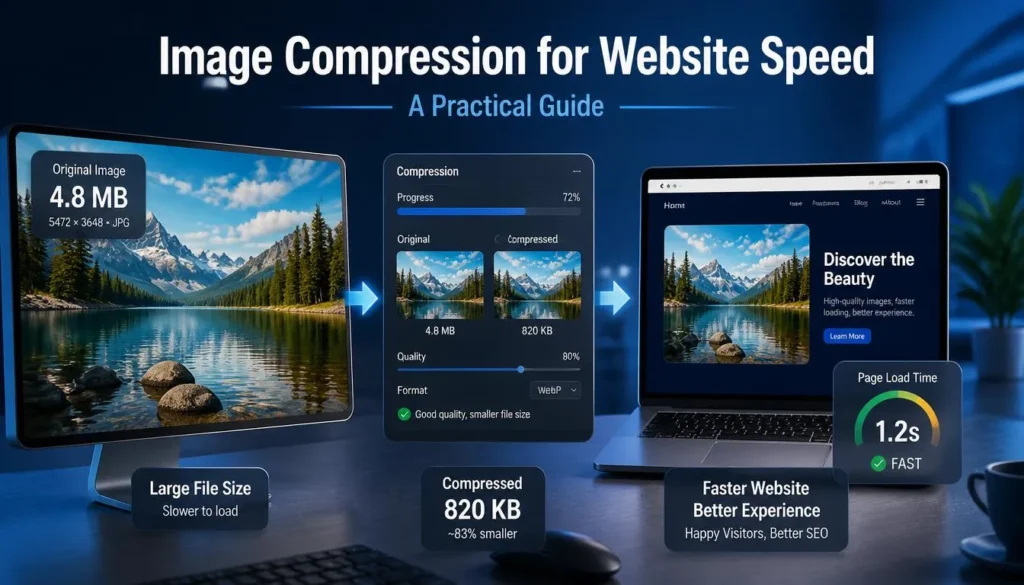
That’s the trap. WordPress and WooCommerce will let you upload a 6000-pixel-wide Image with zero warnings, and your theme will happily scale it down in the browser while the visitor’s device still downloads the full file. If you’ve ever wondered why your product pages feel sluggish even though the images “look fine,” this is almost always why.
This guide covers the actual pixel dimensions, file size targets, and which format to use where,e based on what held up in a real catalog rebuild, not just theoretical best practices.
Why Image Size Matters More on Product Pages Specifically
Product pages are unusually image-heavy compared to blog posts or landing pages. A single product page might load a main Image, four to eight gallery thumbnails, a zoom-capable high-res version, and then three to six “related products” thumbnails below the fold. Get the sizing wrong, and you’re not paying the penalty once;e you’re paying it eight or ten times per page load.
This compounds the issue on category and shop pages too, where a grid of 20-40 products each loads its own thumbnail simultaneously.
WooCommerce Product Image Size: The Dimensions That Actually Work
Here’s what I settled on after testing against Lighthouse and real device load times, and it holds up across most WooCommerce themes:
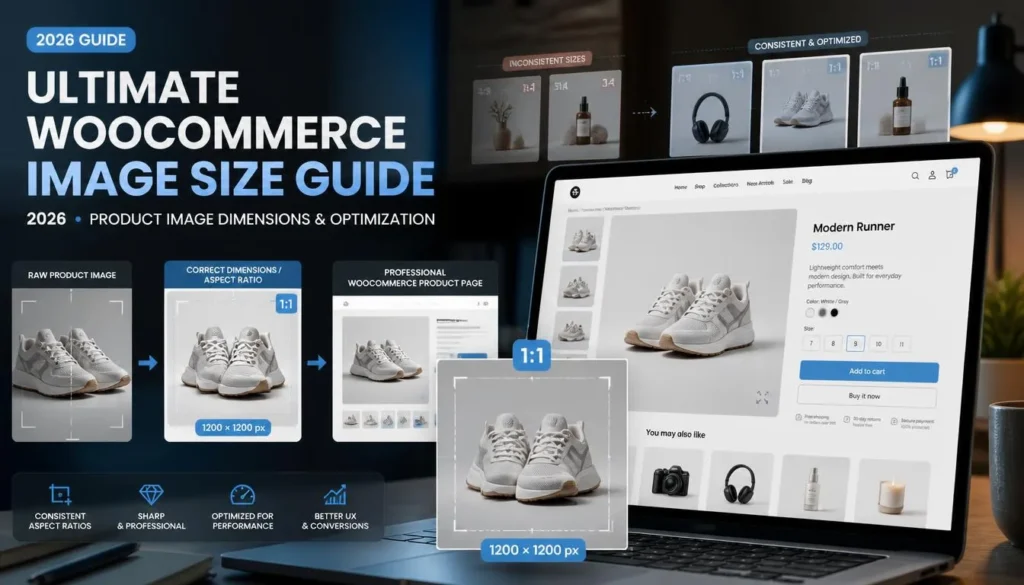
- Main product Image: 800×800px to 1000×1000px (square, matching WooCommerce’s default aspect ratio expectations)
- Gallery thumbnails: 300×300px
- Zoom/lightbox Image: 1600×1600,px but only load this on interaction, not by default
- Category/shop grid thumbnails: 400×400px or smaller
A common mistake is uploading one enormous Image and letting WooCommerce’s built-in Image regeneration handle every size from there. It technically works, but WooCommerce generates JPG or PNG crops by default in most setups, and it still stores the massive original, which some themes and plugins may accidentally serve if a template calls the wrong Image size.
If your product photography is not square, WooCommerce will center-crop it to a square for the main gallery unless you adjust the “additional Image sizes” setting under Customizer > Product Images. Worth checking before you do a bulk upload, not after.
WebP vs JPG vs PNG for Product Images
This is where most guides get vague, so here’s the practical breakdown:
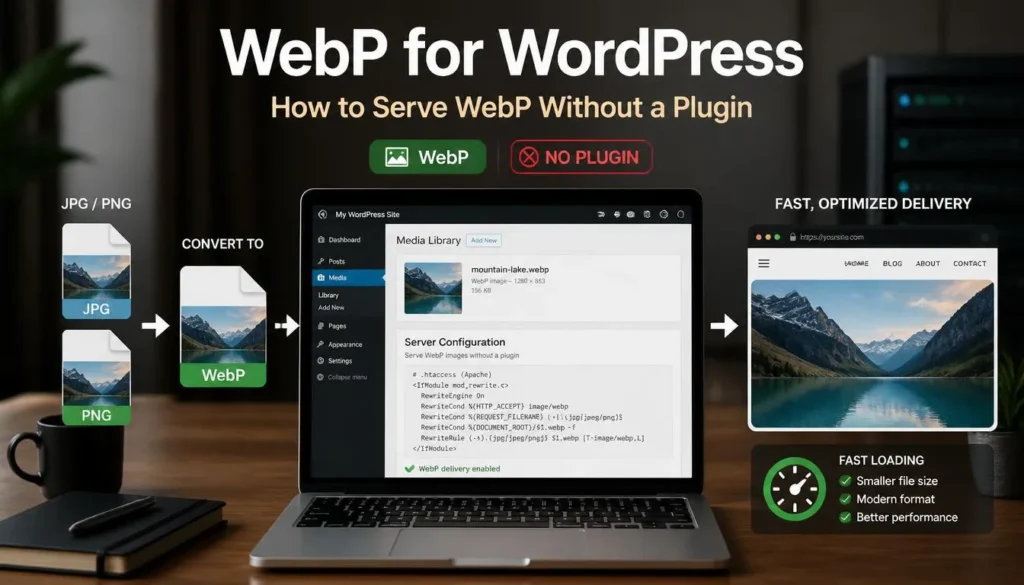
WebP is the right default for most product photography: clean product-on-white-background shots, lifestyle photos, and anything with continuous color gradients. It typically runs 25–35% smaller than an equivalent-quality JPG at the same visual fidelity, and every major browser now handles it natively, including Safari since iOS 14, per Google’s own WebP documentation.
JPG still makes sense as a fallback if you’re supporting a genuinely ancient browser base (rare for most e-commerce), or if a specific plugin in your stack doesn’t handle WebP uploads cleanly. Some older WooCommerce extensions, particularly niche gallery or 360-view plugins, occasionally choke on WebP files, so test one product thoroughly before converting your whole catalog.
Reserve PNG for product images that need real transparency — think jewelry shots on a transparent background for a mockup tool or logo-style products. PNG files are needlessly large for standard photography; a photo that would be 80KB as WebP can easily be 600KB or more as PNG, for no visual benefit if there’s no transparency to preserve.
Most people assume WebP is always the smaller file no matter what. It usually is until you hit a product photo with heavy texture or fine grain (think knitted fabric, brushed metal), and at high-quality settings WebP can occasionally land close to or even above JPG. It’s rare, but worth spot-checking your file sizes rather than assuming.
Step-by-Step: Optimizing Product Images for WooCommerce
Step 1: Resize Before You Compress
Resize your Image to its target pixel dimensions first (80e.g., 0×800 for main images). Compressing a 4000px Image to a small file size still means you’re shipping four times as much pixel data as the browser needs to display.
Step 2: Convert to WebP
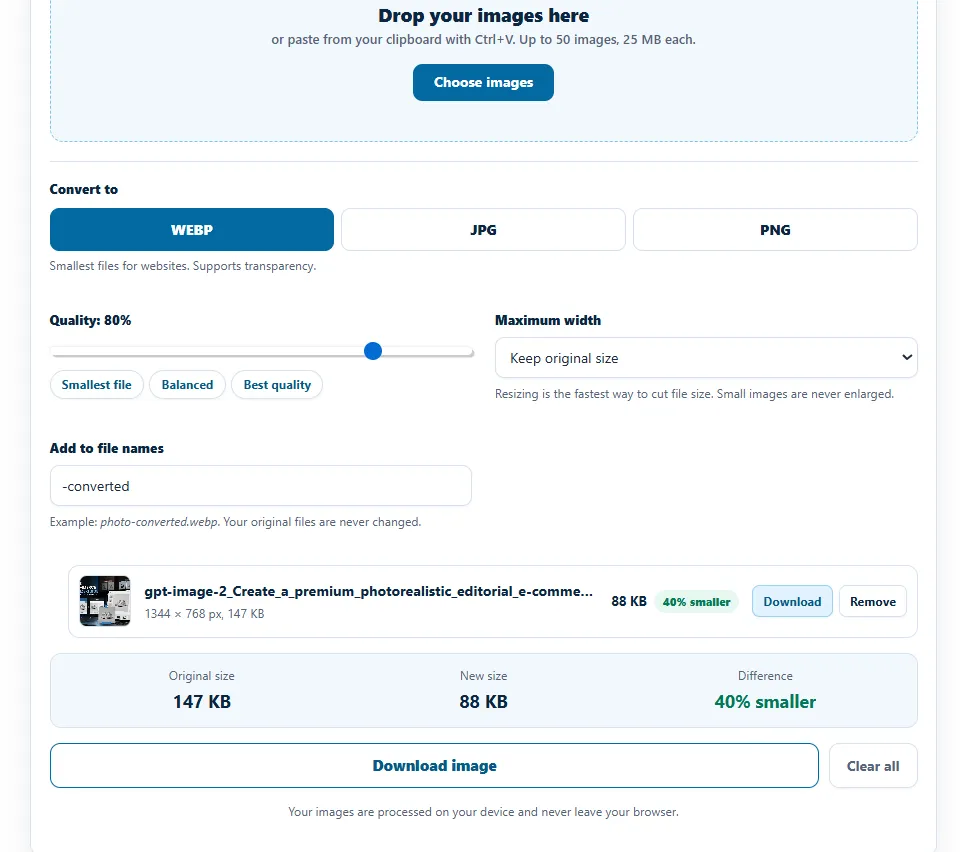
Run your resized images through a WebP converter, keeping quality settings around 75-85% for product photography. Anything above 90% rarely shows a visible difference on a typical monitor, but it adds meaningful file size. If you want a quick way to batch this without installing anything, a browser-based converter can process an entire folder of product shots. In a few minutes
Step 3: Rename Files with Descriptive Filenames
“IMG_4821.jpg” tells search engines nothing. “ceramic-mug-blue-handle.webp” does double duty as SEO and internal organization. Do this before uploading;er renaming inside the WordPress media library gets messy fast.
Step 4: Upload and Set Alt Text
Every product Image needs alt text describing what’s actually in the shot, not just the product name repeated. “Blue ceramic mug, side angle, showing handle detail” is more useful than “Blue Mug Blue Mug Blue Mug.” If you’re adding a screenshot of your own dimension setup to this post, something like “WooCommerce product Image size guide – recommended dimensions for main, gallery, and zoom images” works well as alt text.
Step 5: Enable Lazy Loading for Gallery and Related Products
Most modern WordPress versions lazy-load images by default, but double-check your theme isn’t overriding this for the “related products” or “upsell” sections. These are common blind spots because they’re technically below the main content fold.
Step 6: Test on an Actual Product Page
Run a real product page, not the homepage, through PageSpeed Insights after your changes. The homepage optimizes easily; product pages with galleries and zoom are the actual stress test.
Common Mistakes
- Uploading print-resolution photos straight from the camera. A 24-megapixel DSLR shot doesn’t need to exist at full resolution on a web page displaying it at 800px wide.
- Ignoring the zoom/lightbox Image size. People optimize the visible thumbnail and forget the full-size zoom Image is often 3-4x larger and loads regardless of whether anyone actually clicks to zoom.
- Converting to WebP but never removing the old JPG/PNG originals from active use, so some pages still serve the heavier version depending on which Image size WordPress selects.
- Applying a single “quality” setting across wildly different product types doesn’t make sense, since a plain white-background product shot compresses far more cleanly than a busy lifestyle photo; they don’t need identical settings.
Which Approach Should You Actually Use?
Getting your WooCommerce product Image size and format settings right depends more on your catalog’s consistency than its size. For a store with under 500 products and fairly uniform photography (white or plain backgrounds), a batch WebP conversion at 80% quality using the dimensions above will cover almost every case. For a larger catalog with mixed photography styles — some studio shots, some lifestyle, some user-generated content — it’s worth spot-checking file sizes across a sample of each type rather than assuming one setting fits all.
FAQ
Does WooCommerce automatically compress images on upload?
No. WooCommerce and WordPress will generate multiple crop sizes from your original Image, but they don’t meaningfully compress the file unless a plugin or your hosting environment does so separately.
Will converting to WebP break my product images in older browsers?
Practically speaking, WebP support has been near-universal since 2021, and modern WordPress installs can automatically serve a fallback if needed. It’s a much smaller concern today than it was even a couple of years ago.
What’s the ideal file size for a WooCommerce product Image?
Aim for under 100KB for main product images and under 30KB for gallery thumbnails at the dimensions listed above. These aren’t hard limits, but they’re reasonable targets for keeping pages fast without sacrificing visual quality.
Should every product Image be the same pixel dimensions?
The main gallery images, yes — consistency there keeps your product grid looking clean. Lifestyle or detail shots used elsewhere on the page can vary, as long as they’re sized appropriately for where they’re displayed.
Can I convert my whole product Image library at once?
Yes, most browser-based converters support batch uploads, which is much faster than converting product photos one at a time, especially useful if you’re doing this cleanup after the fact rather than as part of your original upload workflow.
If you’re sitting on a folder of oversized product photos right now, running them through ImagArt’s WebP converter before you upload them to WooCommerce will save you from having to redo this cleanup later.