How to Serve WebP Images on WordPress Without a Plugin
WordPress’s Media Library will accept a 9MB photo straight off a phone, shrug, and publish it. No warning, no suggestion, nothing. I learned how much that costs while moving a travel blog off a bloated theme to a cheap shared host, where every extra plugin made the admin panel slower.
If you want WebP for WordPress without adding yet another plugin to the pile, you can have it. It requires a small file-level change rather than a settings toggle. There are three ways to do it, and most sites only need one or two.
What WordPress Already Does With WebP
Since version 5.8, WordPress has natively accepted WebP uploads. You can drag a .webp file into the Media Library and insert it like any JPG. Thumbnails and responsive sizes get generated too, as long as your server’s Image library (GD or Imagick) was built with WebP support. Most modern hosts meet that requirement. Some older shared plans don’t.
Why bother? Google’s own WebP documentation states that lossy WebP files are roughly 25–34% smaller than comparable JPEGs at equivalent quality. On a page with a dozen photos, that difference is very noticeable in load time.
The catch is that WordPress won’t convert anything for you by default. It accepts WebP, but it doesn’t create it. That gap is what the steps below fill.
Serving WebP for WordPress Without a Plugin: Step by Step
1. Check that your server can actually handle WebP
Go to Tools → Site Health → Info → Media Handling. You’ll see which Image library your server uses (GD, Imagick, or both) and, usually, which formats it supports. If WebP appears there, you’re set.
If it doesn’t, uploads may still work, but WordPress won’t be able to generate the smaller Image sizes. In that case, ask your host to enable WebP support in GD or Imagick. It’s a common request, and most support teams handle it quickly.
2. Convert your images before they touch WordPress
This is the most reliable way to get WebP images onto your site, and it works on any host. Convert the files on your own computer first, then upload the results.
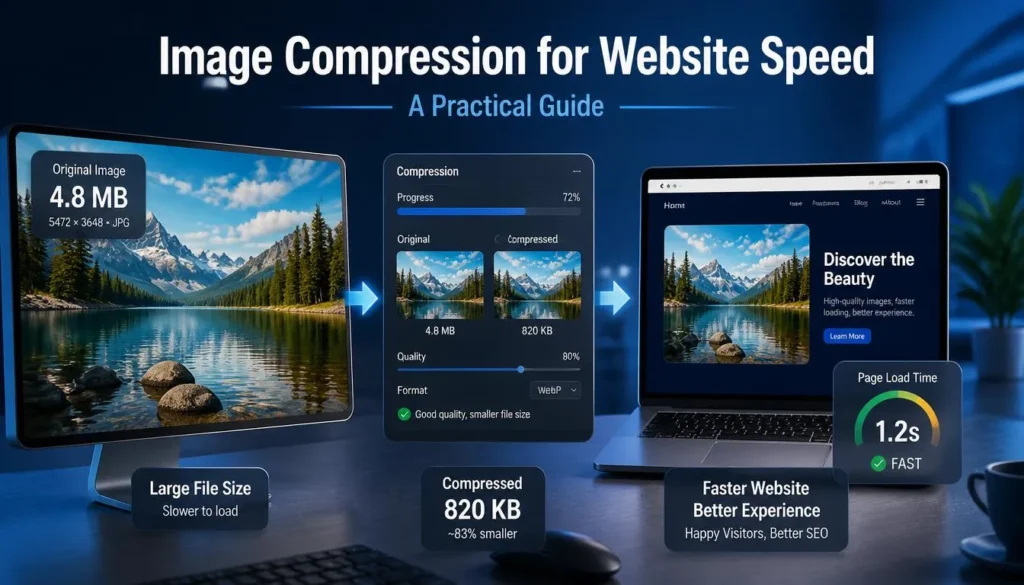
Resize before you convert. That order matters more than most people expect. A 4000-pixel-wide photo displayed in a 900-pixel-wide column wastes data, whatever the format, so shrink the dimensions first and then convert. For photographs, a lossy quality setting in the 75–85 range usually looks identical to the original at normal viewing size while significantly reducing file size. For logos and flat graphics, use lossless compression.
For a batch, you can run the originals through ImagArtAI in your browser. Nothing needs to be installed, and it’s quick to check the output against the source before you upload.
3. Upload the WebP files like any other Image
In the Media Library, choose Add New and drop the files in. Then insert them into posts as usual, through the Image block, featured Image, or gallery. If WordPress rejects the file with a “not permitted for security reasons” message, you’re on a version older than 5.8, or your host or a security rule is filtering file types. Updating WordPress fixes the first problem. For the second, check with your host.
4. Auto-convert future uploads with a small code filter
Manually converting every file gets tedious. WordPress has a filter that tells it to output WebP versions whenever it generates Image sizes. Add this to your child theme’s functions.php (not the parent theme, or an update will wipe it out):
add_filter( 'image_editor_output_format', function ( $formats ) {
    $formats['image/jpeg'] = 'image/webp';
    $formats['image/png']  = 'image/webp';
    return $formats;
} );
After this, new JPG and PNG uploads produce WebP versions of every resized Image. One thing tripped me up at first: WordPress keeps your original upload, so the full-size file stays a JPG or PNG. The smaller sizes, which themes serve most of the time, are converted to WebP.
Back up the file before you edit it. A missing semicolon in functions.php can take a site down.
5. Handle your existing library
You have two no-plugin options for images already on the site.
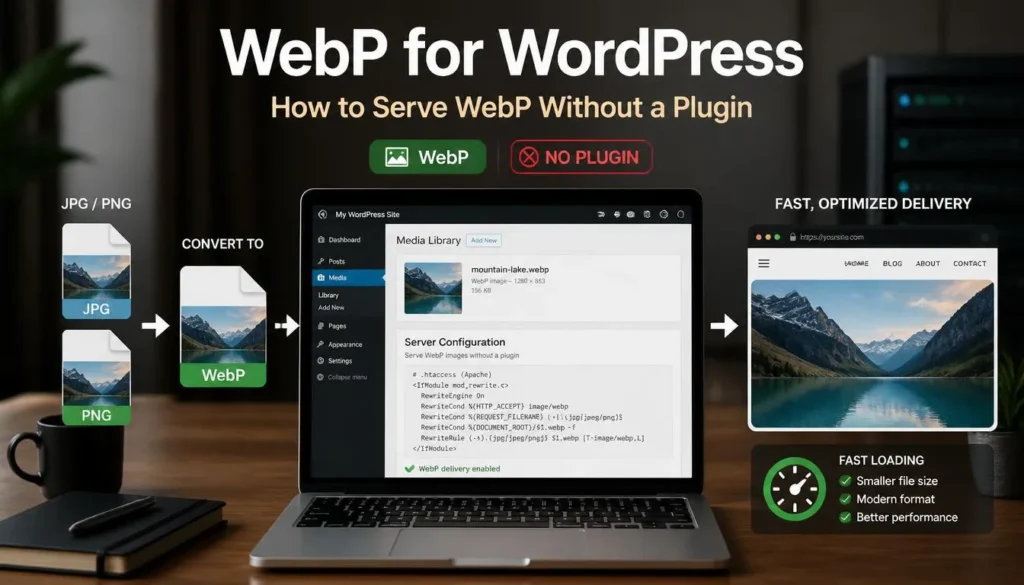
Option A: the .htaccess rewrite (Apache servers). Convert your existing images to WebP, then upload each .webp file into the same folder as its original, with the same name. So photo.jpg gets a photo.webp beside it. Then add this to the .htaccess file in your site root, above the WordPress block:
<IfModule mod_rewrite.c>
RewriteEngine On
RewriteCond %{HTTP_ACCEPT} image/webp
RewriteCond %{DOCUMENT_ROOT}/$1.webp -f
RewriteRule ^(.+)\.(jpe?g|png)$ $1.webp [T=image/webp,E=WEBP_ACCEPT:1,L]
</IfModule>

<IfModule mod_headers.c>
Header append Vary Accept env=WEBP_ACCEPT
</IfModule>

<IfModule mod_mime.c>
AddType image/webp .webp
</IfModule>
Browsers that advertise WebP support get the .webp file whenever one exists. Everyone else keeps getting the original. Your post content doesn’t change at all.
On Nginx, the same idea applies, but the config lives in your server block, so you’ll likely need your host’s help.
Option B: the <picture> element. For a handful of important images, like a hero banner, switch to a Custom HTML block:
<picture>
  <source srcset="/wp-content/uploads/2025/03/hero.webp" type="image/webp">
  <img src="/wp-content/uploads/2025/03/hero.jpg" alt="Descriptive alt text" width="1200" height="630">
</picture>
The browser prefers WebP if it can and falls back to JPG if it can’t. It’s more manual, but it’s precise and easy to reason about. I used this for the few images that mattered most, and it beat blindly trusting a rewrite rule.
6. Test that it’s really working
Open the page, right-click, and choose Inspect. Go to the Network tab, reload, and filter by “Img.” Check the Type column for webpor click an Image and look for content-type: image/webp in the response headers.
If you still see JPGs, clear any caching plugin or CDN cache and reload. Cached responses are the most common reason a working setup looks broken.
Common Mistakes
Converting without resizing. A WebP that’s still 5000 pixels wide is only a marginal improvement. Fix the dimensions first.
Editing .htaccess Without a backup. A single stray character can cause a 500 error across the entire site. Download a copy before you touch it.
Forgetting the Vary: Accept header. If you use a CDN or a page cache, it may store one version and serve it to everyone. The Vary line in the snippet above exists to prevent that.
Using WebP for social sharing images. Some platforms and feed readers still handle WebP inconsistently. I keep a JPG for the og:image (the preview Image) even when everything else on the page is WebP.
Deleting the originals. Don’t. The fallback rules depend on them, and you’ll want them if you ever re-export at a different quality.
Getting WebP working in WordPress is less about one clever trick than about choosing the right method for your host and the size of your library.
FAQ
Does WordPress support WebP natively?
Yes. Since WordPress 5.8, you can upload and use WebP images directly. Your server also needs WebP support in its Image library for WordPress to generate the smaller sizes.
Will WebP help my SEO?
Not directly, but smaller images make pages load faster, which supports the page-experience side of things. Google can index WebP images without any trouble.
Should I use lossy or lossless WebP?
Lossy for photographs, where it shrinks the file the most. Lossless for logos, screenshots, and graphics with sharp edges or text.
Why does WordPress say my WebP file can’t be uploaded?
Usually your WordPress version predates 5.8, or a host-level or security setting is blocking the file type. Update WordPress first, then ask your host if the error persists.
Do I need to delete my old JPG and PNG files?
No. Keep them. Fallback rules and the <picture> element both rely on the originals staying in place.
Where to Go From Here
Start small. Convert a few of your heaviest images, upload them, and check the difference in your browser’s Network tab. If the results look good, add the functions.php filter for new uploads, then tackle the back catalog when you have an afternoon. When you’re ready to convert a batch, ImagArt’s browser-based converter handles JPG, PNG, and WebP in whichever direction you need.