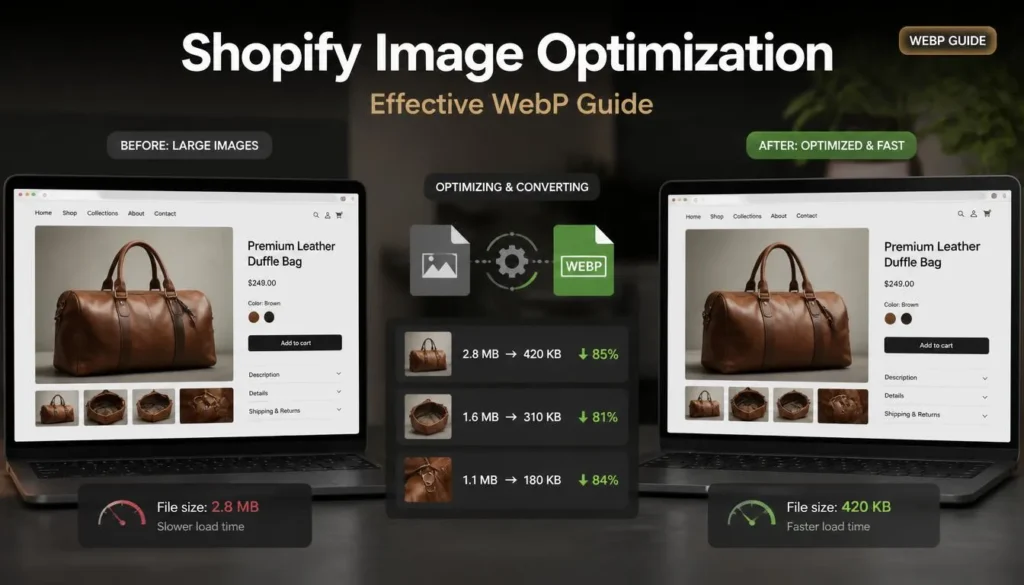
I once inherited a Shopify store with 340 products, each one carrying three to five photos straight off a DSLR. Nobody had touched a single Image before uploading it. The homepage alone was loading nearly 14 MB of images, and the client’s mobile PageSpeed score was in the low 30s. That’s the kind of number that makes a store owner nervous, and it should.
Shopify Image optimization isn’t just a technical box to check; it’s often the single biggest lever you can pull to improve load times on a product-heavy store. And the fastest, least disruptive way to do it right now is converting your product photos to WebP.
This guide walks through exactly how to do that, without breaking your theme, your CDN caching, or your sanity.
Why WebP Matters for Shopify Specifically
Shopify already compresses images somewhat on upload, but it doesn’t aggressively convert formats unless your theme or app handles that. JPG and PNG files, especially those exported straight from photo editing software, tend to carry a lot of dead-weight metadata, uncompressed color data, and resolution far beyond what a browser actually needs.
WebP typically produces files that are 25–35% smaller than a comparably detailed JPG, and sometimes more when there’s a lot of flat color or repeated pattern in the Image — think a plain product on a white background, which describes most Shopify catalogs pretty well. According to Google’s own WebP documentation, lossless WebP images run about 26% smaller than PNGs, and lossy WebP images are typically 25–34% smaller than comparable JPEGs at equivalent quality. Smaller files mean less time spent downloading images, which directly affects page speed and, since Google factors speed into ranking signals, your Shopify Image optimization efforts also indirectly feed your SEO. google
There’s a caveat worth naming early: heavily textured or grainy photos sometimes compress less predictably in WebP than people expect. It’s not a universal win, but for the vast majority of clean product photography, it is.
Step-by-Step: Converting Product Photos to WebP
Step 1: Audit Your Current Image Sizes
Before converting anything, check what you’re actually working with. Open a few product pages, right-click an Image, and check its file size and dimensions. If you’re seeing product photos above 500KB, or dimensions wildly larger than what’s displayed on the page — a 4000px-wide Image rendering at 800px, for instance — that’s your first red flag.
Step 2: Resize Before You Convert
This step is constantly skipped, and it’s the one that matters most. Converting a 6000px Image to WebP still leaves you with a large file — just a smaller large file. Resize product photos to the actual maximum width they’ll display at on your storefront, usually somewhere between 1200px and 2048px depending on your theme’s zoom behavior.
Step 3: Convert to WebP
Once your images are resized, run them through a converter. A browser-based tool works well here since it skips the upload-download cycle you’d get with desktop software. You drag the resized JPGs or PNGs in, and you can convert them to WebP in the browser without installing anything, which matters if you’re processing a few hundred images on a deadline.
Step 4: Check Visual Quality at 100%
Don’t just glance at a thumbnail. Zoom in on product detail — shots: texture, fabric, stitching, anything with fine detail at full size. WebP’s compression is generally quite good, but pushing quality settings too aggressively can introduce visible artifacts on close-up shots, and product photos are exactly where customers zoom in the most.
Step 5: Upload to Shopify and Replace Existing Images
Shopify now accepts WebP files directly in the media library following recent platform updates, so no workaround is needed. Replace the existing JPG/PNG versions on each product page, and double-check that alt text carries over; it often doesn’t transfer automatically when you swap a file rather than editing the existing one.
Step 6: Test Page Speed Again
Run your product and collection pages through a speed-testing tool again after the swap. This is the step that tells you whether the work actually moved the needle, and it usually does noticeably in most catalogs with previously unoptimized images.
Common Mistakes to Avoid
A few things trip people up consistently on this. Converting images without resizing first is probably the most common one; it feels like progress but leaves most of the file weight untouched. Another is applying WebP conversion inconsistently across a catalog, so half your products load fast while the other half don’t, creating a jarring experience for anyone browsing a collection page.
The third mistake is skipping the visual quality check for an entire batch at once. If you’re converting 50 or 100 images in one pass, spot-check a handful across different product types rather than assuming uniform quality; lighting conditions and background colors affect how compression behaves.
Which Should You Actually Prioritize First
If you’re working with a large catalog and limited time, start with your highest-traffic collection pages and best-selling products. Those pages carry the most weight for both conversion rate and crawl budget, so speed improvements there compound faster than optimizing a rarely viewed product buried three pages deep in a collection.
FAQ
Does Shopify automatically convert images to WebP?
Shopify applies some automatic optimization and can serve WebP to compatible browsers through its CDN in certain theme configurations, but this depends on your theme and isn’t guaranteed for every Image you upload. Manually converting before upload gives you direct control over the result.
Will converting to WebP hurt my SEO if Google can’t crawl the images?
No, WebP is a standard, widely-supported format, and Google’s own Image crawlers handle it without issue. If anything, the speed improvement tends to help SEO more than the format itself risks anything.
What quality setting should I use when converting product photos?
Somewhere in the 75–85% quality range usually preserves visual fidelity for product photography while still delivering meaningful file size reduction. Go lower only if you’re comfortable with the visible trade-off on close inspection.
Do I need to convert every single product Image, or just the main ones?
Ideally all of them, since collection and search pages often load multiple thumbnails at once. But if you’re triaging by time, prioritize primary product images and hero shots first.
Can I convert images back to JPG or PNG later if something breaks?
Yes. It’s worth keeping your original resized files somewhere before converting, just in case a specific app or integration in your store doesn’t play well with WebP. That’s rare, but not impossible, with older third-party apps.
Getting through an entire catalog by hand is tedious, but it doesn’t have to involve installing software or juggling desktop tools. Running a batch of resized photos through ImagArtAI’s browser-based converter gets you WebP files in a few minutes, all without leaving the browser tab you’re already in.