Why Image Compression Is the Fastest Way to Improve Page Speed
You’ve published a WordPress article, checked it on your phone, and found yourself waiting for the hero photo while the headline is already readable. The Image looks great when it arrives. The file behind it, though, is still the full-size export you uploaded from your laptop.
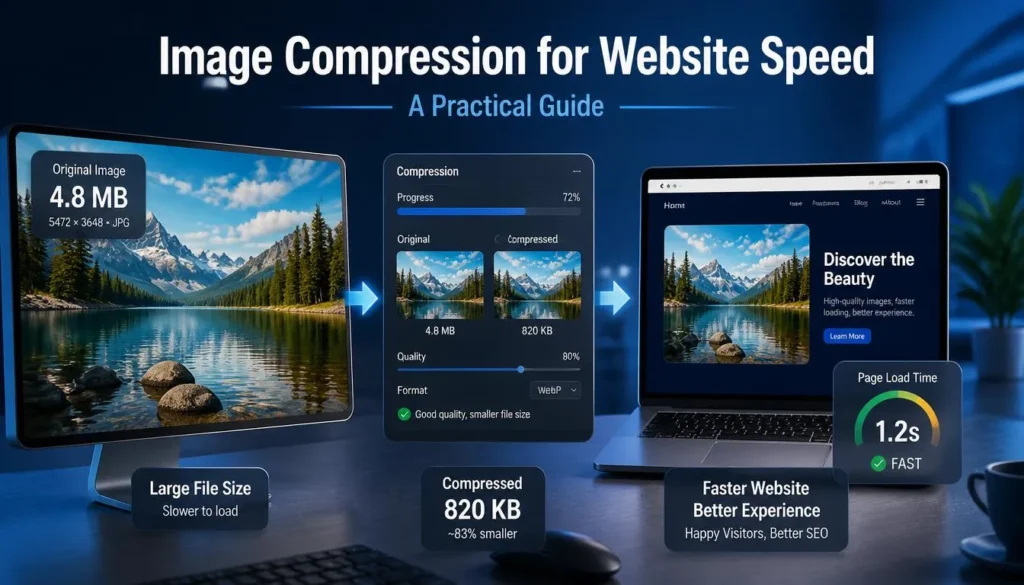
That’s why Image compression for website speed is often a good first move: you can reduce the amount a visitor has to download without redesigning the page or changing its content. It’s especially useful when one large Image sits near the top of an otherwise straightforward article.
Don’t compress every Image blindly. First, find out which file the browser actually loads. A small thumbnail buried near the footer is unlikely to be your top priority if the hero Image is several times as heavy.
Why images slow a page down
An Image takes time to request, download, decode, and display. Compression primarily reduces the bytes sent over the network. If the Image is prominent, particularly if it becomes the page’s Largest Contentful Paint (LCP) element, a smaller file can help it appear sooner. Google’s Image performance guide also makes an easily missed point: sending an Image at an appropriate resolution matters as much as compression.
Picture a blog header displayed at roughly 700 CSS pixels wide on a phone. If the browser downloads a 4,000-pixel-wide source, it still has to fetch that source before scaling it down on screen. Lowering its export quality might help, but preparing appropriately sized versions addresses the larger mismatch.
This is why the title needs one qualification. Compression is often the fastest practical fix for an image-heavy page, not a guarantee that it is your page’s biggest bottleneck. A slow server response, delayed Image request, or render-blocking resources can still hold back the result. Measure the page before deciding what to tackle first.
A practical Image compression workflow
1. Find the Image worth fixing
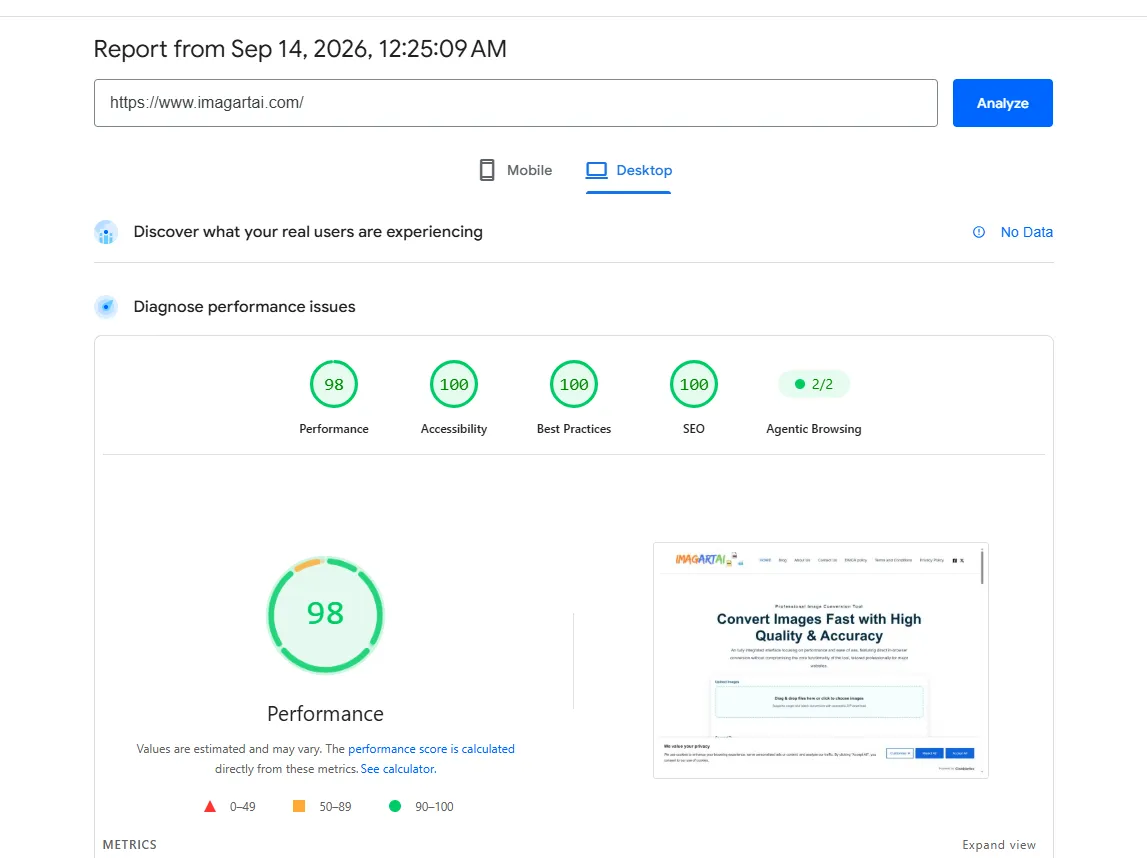
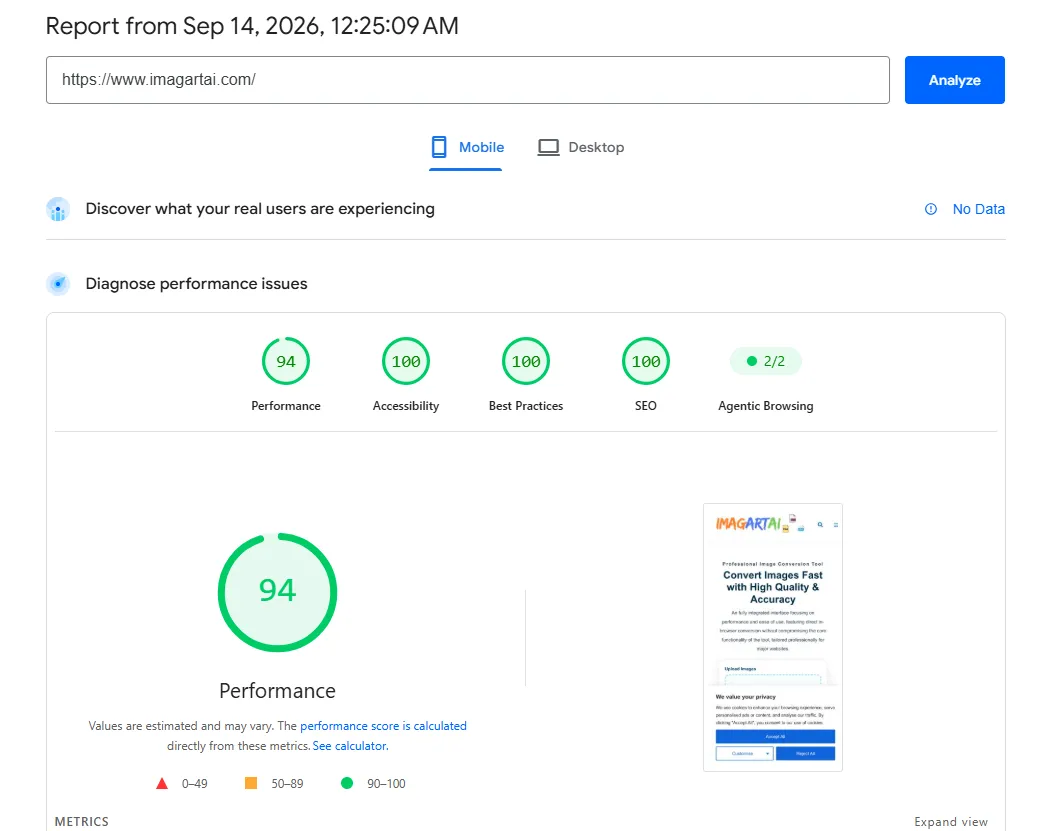
Run the page through PageSpeed Insights, then check the Image requests in your browser’s Network panel. Sort them by transferred size, then inspect the files near the top of the page. Pay particular attention to the hero, feature Image, and any product photo visible without scrolling.
Now compare the file’s intrinsic dimensions with its displayed size. Check the actual URL the browser requested, too. A WordPress page may offer several Image sizes, but a theme or custom block can still point to the original upload.
Keep a note of the starting file size and the page’s current LCP result. You need a baseline; otherwise, a smaller export may feel like an improvement without changing what visitors experience.
2. Resize before lowering quality
Start with dimensions. If a hero appears at different widths across desktop and mobile layouts, prepare sensible variants rather than sending the same large file to everyone. On high-density screens, the ideal source can be wider than its CSS display width, so “resize to exactly what it looks like on screen” is too crude a rule.
For example, a 700-pixel-wide display area might benefit from a wider source on a high-density phone. It probably does not need the untouched 4,000-pixel original. Choose a size that stays sharp in your real layout, then inspect it on the devices you care about.
On a site you manage yourself, responsive Image markup can let the browser choose among those variants:
<img

src="/images/article-800.webp"

srcset="/images/article-800.webp 800w,

          /images/article-1400.webp 1400w"

sizes="(min-width: 900px) 700px, 100vw"

width="1400"

height="900"

alt="The article's featured image">
The URLs are examples; each file needs to exist at the width stated in its srcset descriptor. Check the sizes value against your actual layout rather than copying it unchanged.
3. Choose a format that suits the Image
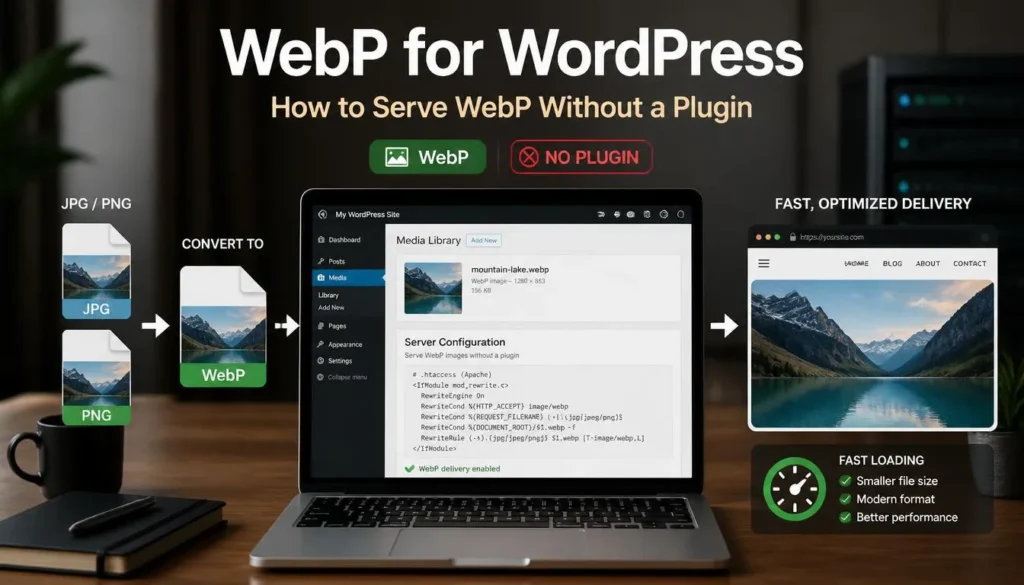
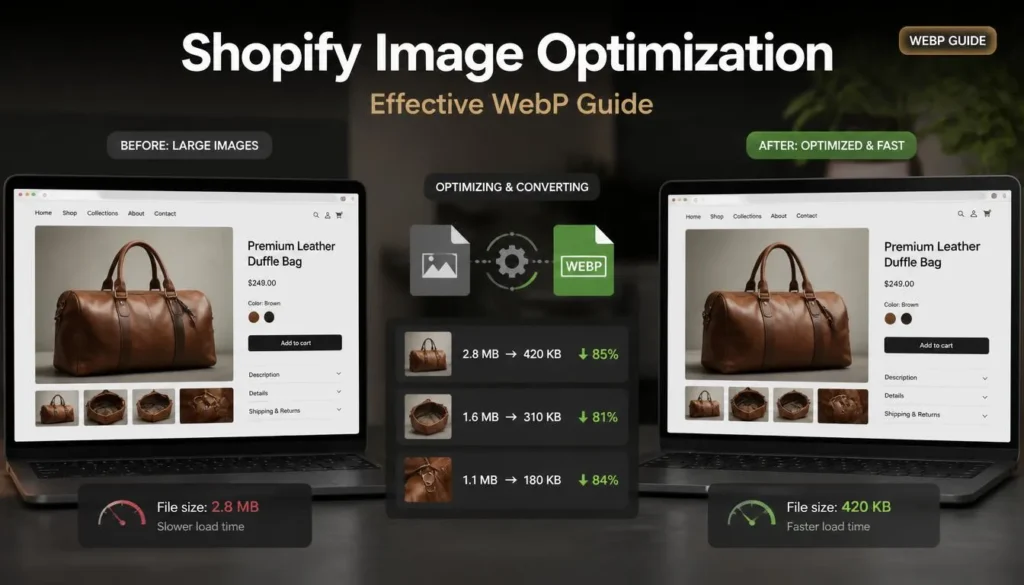
For a photograph, compare an optimized JPG with a WebP export. WebP can often deliver a smaller file at comparable visual quality, but the result depends on the source and the settings you choose. For a screenshot with tiny interface text, inspect the lettering carefully: aggressive lossy compression can make sharp edges look fuzzy. PNG or lossless WebP may be the better fit for that asset.
Keep an original copy before exporting. Repeatedly saving from an already compressed JPG or WebP is not a reliable way to preserve detail.
If you need fresh versions of a page, export JPG and WebP candidates from the original, then compare the files at the sizes they will appear on your site. Check the downloaded result and any preview; the deployed file is what matters.
4. Compress until the change becomes visible
There is no quality setting that works for every Image. Start with a reasonably high-quality export, compare its size to the original, and gradually lower the setting. Stop when you begin to notice damage that matters for that particular picture.
Look where compression is most likely to show: hair, foliage, product labels, fine lines, gradients, and text embedded in screenshots. View the export at its intended display size first, then zoom in to investigate anything suspicious. A flaw visible only at extreme magnification may not matter on the page; a smeared product label certainly does.
Don’t chase an arbitrary file-size target for every asset. A full-width hero and a tiny thumbnail have different jobs. If you do have a strict upload limit, the site’s guide to compressing an Image to 100KB without losing quality covers that more specific workflow.imagartai
5. Replace the file and test the page again
Upload the new version and confirm that the page serves it, not a cached old copy or an untouched original under a different URL. In the Network panel, inspect the requested Image URL, its transferred size, and the browser’s selected responsive-image candidate.
Then rerun your performance check under comparable conditions. Did the Image payload shrink? Did the Image appear sooner? Did LCP improve, or is another delay now more obvious?
This last step is easy to skip. A successful export only proves that you made a smaller file. It does not prove that your theme used it, that your CDN delivered it, or that the browser selected the variant you intended.
When compression is not enough
A compressed Image can still arrive late if the browser discovers it late. If the hero is your LCP Image, check whether a page builder inserts it via CSS or JavaScript, and whether it has been accidentally set to lazy-load. Reducing file size helps the download portion of the problem; it cannot recover time lost before the request begins.
The reverse applies to images farther down the page. Lazy loading can avoid downloading them during the initial view, reducing competition for bandwidth. Use it where it fits, but don’t treat it as a substitute for preparing appropriately sized files.
Also check whether the page unnecessarily uses several near-identical exports. A practical set of responsive sizes is usually easier to maintain than a separate version for every possible screen width. What matters is that visitors receive a suitable Image, not that your media library contains dozens of variants.
Common mistakes to avoid
-
Compressing the wrong file. Confirm which Image URL the browser loads before you spend time optimizing an unused upload.
-
Changing format but keeping excessive dimensions. A WebP can still be unnecessarily heavy if it is much larger than the layout requires.
-
Pushing quality too low. Smaller bytes are not a win if a product photo no longer shows the detail a buyer needs.
-
Treating PNG as the default for photos. Compare an optimized JPG or WebP when the Image does not need PNG’s characteristics.
-
Judging only by a preview. Download the export, add it to the page, and inspect the result on a phone and a desktop.
-
Lazy-loading the main hero without checking LCP. A delayed request can cancel out some of the benefit of a smaller file.
FAQ
Does Image compression improve page speed immediately?
It reduces the file size the visitor needs to download, so it can improve Image load time. The effect on the full page depends on whether that Image was a meaningful bottleneck and whether the browser actually serves the optimized version. Compare before-and-after requests and performance results rather than assuming the change worked.
Is WebP always faster than JPG?
No. WebP often compresses well, but format alone does not decide the outcome. Compare real exports at similar visual quality and at the dimensions your page needs.
Should I compress images before uploading to WordPress?
Preparing appropriately sized, visually checked originals before upload gives you control over what enters the media library. After publishing, verify which version the theme serves. An optimized upload is of little use if the page points to a different, heavier file.
Can I compress an Image without losing quality?
Lossless compression preserves Image data, while lossy compression discards some information to further reduce file size. With a carefully chosen lossy setting, the difference may be hard to notice at normal viewing size, but “looks the same” is not the same as “no data was lost.”
If you have time to fix just one Image today, start with the large one visitors see first. Resize it sensibly, compare a few exports, publish the best-looking smaller file, and verify that the browser serves it.