Why Your WebP Images Look Broken in Safari (And How to Fix It Without Losing Quality)
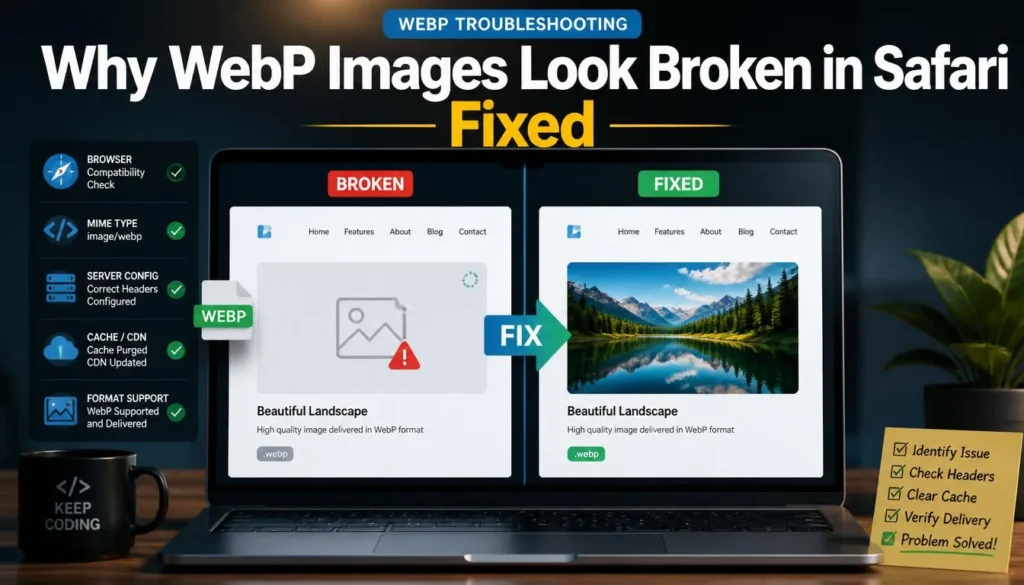
I once spent a full afternoon convinced a client’s hosting was broken. Every Image on their Squarespace product page loaded perfectly in Chrome, looked great in Firefox, and then… didn’t show up in Safari. No error message, no broken-image icon at first glance — just blank white boxes where the product photos should have been. It turned out the images were WebP files exported by an older plugin, and the version of Safari the client’s designer was testing on didn’t know how to handle them.
If you’re seeing something similar — images that work everywhere except Safari, or that show up fine on your Mac but not on a colleague’s iPhone — you’re not dealing with a corrupted file or a CDN issue nine times out of ten. You’re dealing with a compatibility gap that’s smaller than it used to be, but still very real.
Why This Happens
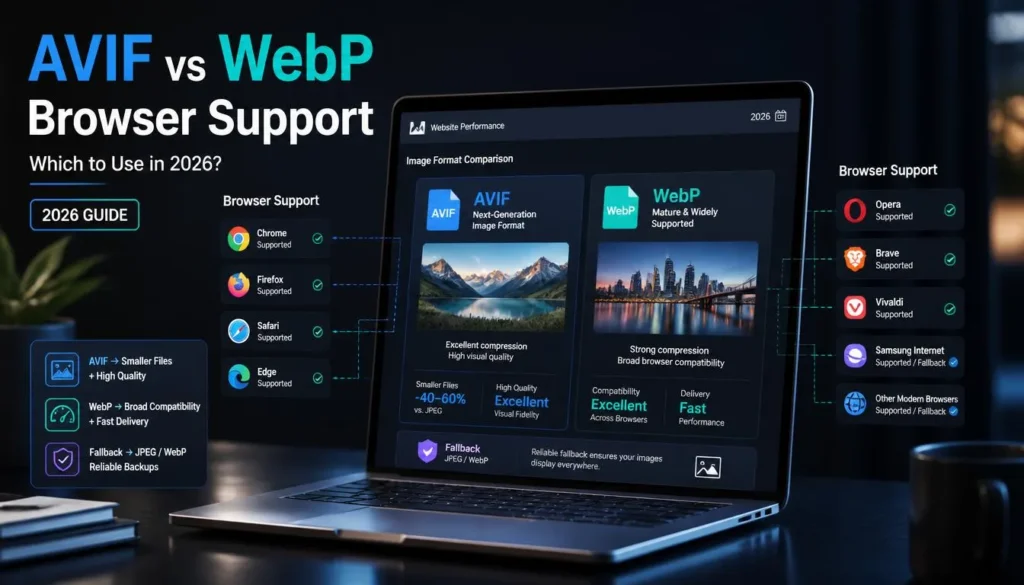
Safari’s WebP support has a messy history. Apple didn’t add WebP support to Safari until version 14, which shipped with macOS Big Sur in late 2020. Before that, Safari refused to render WebP images at all — no fallback, no warning, just a blank space or a broken Image icon, depending on how the surrounding HTML was written.
Here’s the part that trips people up: even with modern Safari, you can still run into broken WebP images for a few specific reasons.
Outdated Safari or iOS versions. Anyone running Safari 13 or earlier, or an older iPadOS/iOS build that hasn’t been updated in a while, still can’t render WebP. This is more common than you’d think; plenty of people don’t update their browsers or OS the moment a new version drops, especially on work machines.
Animated WebP support gaps. Static WebP images render fine in current Safari, but animated WebP (the format some tools use instead of GIF) has had spottier support for longer, and older Safari builds sometimes render only the first frame or nothing at all.
Server MIME type misconfiguration. This one has nothing to do with the browser at all. If your server is sending the WebP file without the correct image/webp content-type header, some browsers, including Safari, will refuse to render it even though the file itself is perfectly valid.
CMS or plugin conversion issues. A surprising number of “broken in Safari” reports trace back to a plugin that generated a corrupted or incomplete WebP file during automatic conversion, not to Safari itself. The file looks fine in a desktop Image viewer but fails browser-side validation.
The Fixes, Easiest to Most Involved
1. Check Your Safari and iOS/macOS Version First
Before touching any code, rule out the obvious. Go to Safari’s “About Safari” menu, or check Settings > General > Software Update on iOS. If you’re on Safari 14 or later (which covers the vast majority of users at this point), WebP should render without issue for standard, correctly-encoded files. If the person reporting the problem is on an older version, that’s your answer, and it’s worth noting in your bug report rather than chasing a phantom code issue.
2. Serve a Fallback with the <picture> Element
This is the most reliable fix if you need to support any older Safari or iOS versions still floating around in your traffic. Instead of a plain <img> tag pointing straight at a .webp file, wrap it in a <picture> element with a JPG or PNG fallback:
<picture>
  <source srcset="product-photo.webp" type="image/webp">
  <img src="product-photo.jpg" alt="Product photo">
</picture>
Browsers that understand WebP will load the .webp source. Anything that doesn’t, including ancient Safari versions,s silently falls back to the JPG. No broken images, no extra JavaScript, and it degrades gracefully without you having to detect the browser yourself.
3. Re-Convert the File Instead of Trusting the Original Export
If you’re confident the browser version isn’t the issue, the file itself might be the problem. A WebP file exported by an inconsistent plugin or an older conversion tool can technically be malformed even if it opens fine in Preview or Photoshop. Re-converting the original source Image, rather than the already-converted WebP, using a clean, standards-compliant converter usually resolves this. I’ve seen this fix issues that looked like Safari bugs but were actually just bad initial exports.
4. Fix the Server’s MIME Type
If images are missing across all browsers, not just Safari, this is worth checking even though it’s less common. Your server needs to return Content-Type: image/webp for .webp files. On Apache, this usually means adding a line to your .htaccess file; on Nginx, it’s a types block in your config. Most modern hosts handle this automatically, but older or heavily customized server setups sometimes miss it, especially if WebP support was added to the site after the server was originally configured.
5. Convert to JPG or PNG for Safety-Critical Assets
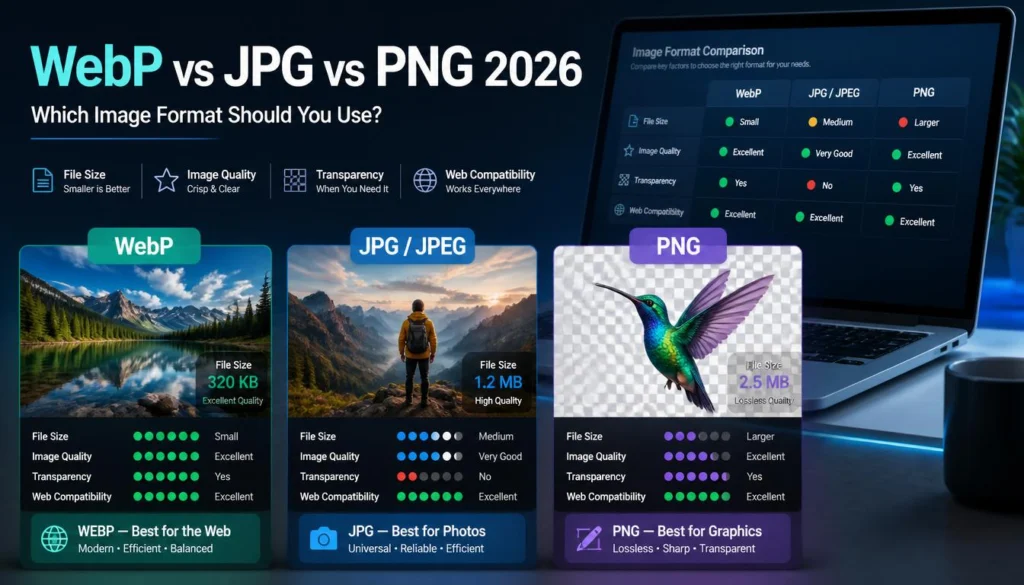
For images where broken rendering genuinely isn’t an option a logo, a hero banner, anything above the fold it’s sometimes just not worth the risk of relying on universal WebP support, even in 2026. Converting those specific assets to JPG or PNG and reserving WebP for lower-stakes images (product thumbnails, gallery photos) is a reasonable trade-off. You lose some file size savings on a handful of images, but you eliminate the failure mode entirely. If you’re weighing which format deserves the safety-critical slots on your site, WebP vs JPG vs PNG: Which Format to Use breaks down the trade-offs in more depth than a Safari-specific fix can.
This is the same underlying situation as a WebP file failing to open outside the browser, whether in a marketplace upload, an email client, or an older desktop app. If that sounds familiar, the troubleshooting steps in WebP Not Supported? How to Open and Convert Files cover the non-Safari side of the same compatibility gap.
Common Mistakes to Avoid
A few things make this problem worse than it needs to be. Relying on JavaScript-based feature detection instead of the <picture> element is one that adds a render delay and a dependency that can itself fail. Assuming “Safari supports WebP now” means every visitor is on a current version is another; enterprise and older-device users lag behind more than most developers expect. And re-uploading the same broken WebP file repeatedly, hoping a cache refresh fixes it, usually wastes time; if the file itself is malformed, clearing the cache won’t help.
Prevention Tips
Test new Image formats across a range of Safari versions before rolling them out sitewide, not just on your current machine. Keep fallback images in your build process by default rather than adding them reactively after a bug report comes in. And when converting images at scale, use a converter that validates output rather than one that renames the file extension; that distinction is exactly what causes files to look fine locally but fail in the browser.
If you’re dealing with a batch of images that need re-converting anyway, ImagArtAI ‘s free browser-based tool will regenerate clean WebP, JPG, or PNG copies from your originals without installing anything — a reasonable first move before you start rewriting your <picture> markup.
FAQ
Does Safari support WebP images in 2026? Yes. Safari has supported WebP since version 14 (2020), and current versions of Safari on both macOS and iOS render standard WebP images without issue. Problems usually come from outdated browser versions, malformed files, or missing server MIME types rather than a lack of support.
Why do my WebP images show a broken icon only on iPhone? This is almost always an outdated iOS version. iOS versions older than 14 don’t support WebP at all. Check the device’s iOS version under Settings > General > Software Update, and consider adding a JPG fallback with the <picture> element regardless.
Can I convert everything to WebP and stop worrying about this? For most modern audiences, yes, WebP compatibility is high enough that it’s the default recommendation for web images. But if your analytics show meaningful traffic from older devices or enterprise browsers, a fallback costs almost nothing to add and removes the risk entirely.
Will converting WebP back to JPG hurt Image quality? Some quality loss is possible when converting a heavily compressed WebP back to JPG, since you’re re-encoding an already lossy file. For best results, convert from the original source Image rather than the WebP whenever the original is still available.
Is this a Safari bug or a problem with my files? It depends. If the Image fails in every recent version of Safari, the file or server configuration is almost certainly the cause. If it only fails on older Safari or iOS builds, that’s expected behavior, not a bug; WebP support doesn’t exist there.